How to Create a Brand Kit in Figma: A Guide for Social Teams
Learn how to create a brand kit in Figma to speed up social media content creation. Build consistent marketing design systems for your startup or agency today.
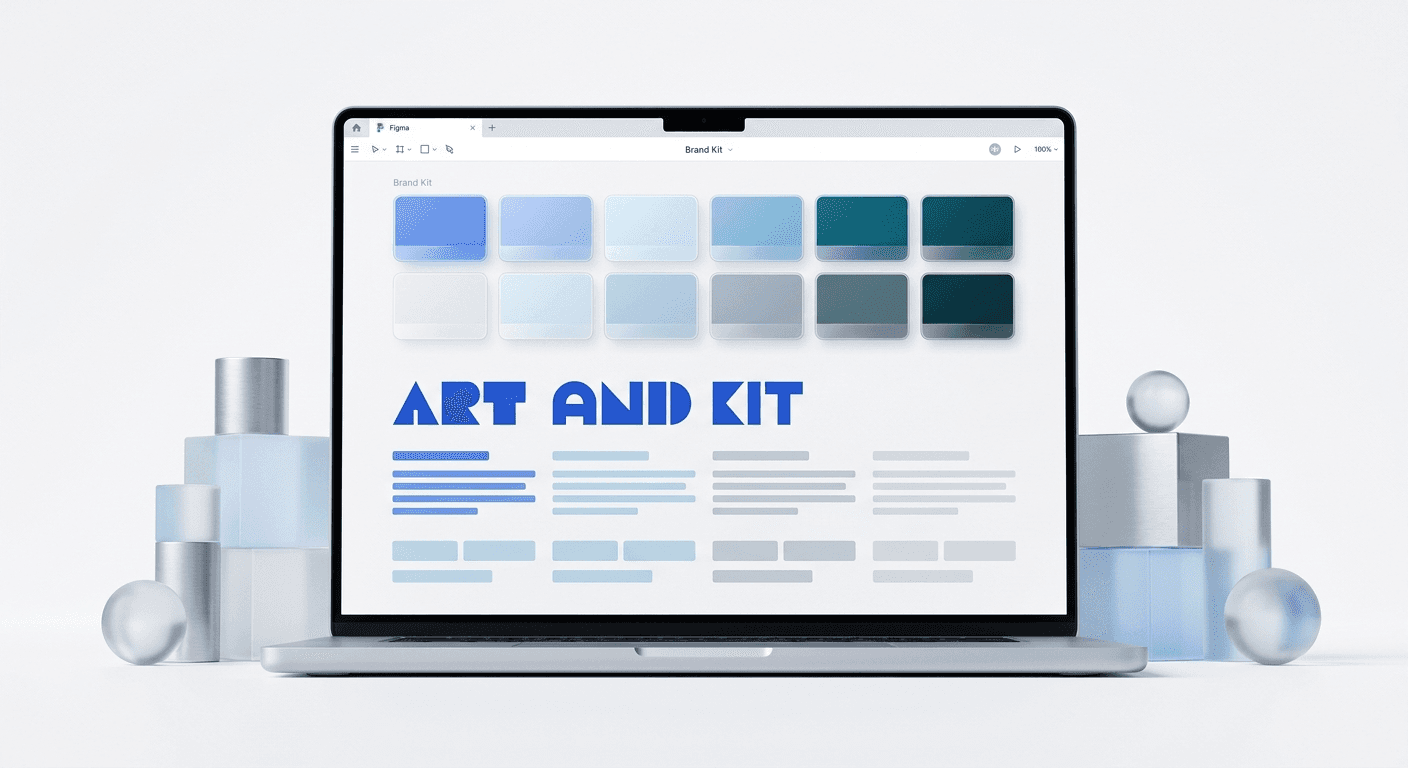
The answer to how to create a brand kit in Figma for social media is to define shared color styles, typography, and reusable components that live in a single, accessible file. This lightweight marketing design system allows your team to apply consistent branding to every post without starting from scratch.
To understand how to create a brand kit in Figma, you must shift your focus from complex product UI to high-velocity marketing assets. A brand kit is a central source of truth containing your logo variants, color palettes, and typography. While product designers build massive systems with thousands of components, social media teams need a focused set of tools to produce carousels and ads quickly. We recommend building this kit specifically for the platforms you use most, such as LinkedIn and Instagram.
Consistency is the primary driver of brand recall. According to a study by the Nielsen Norman Group, design systems improve brand consistency across digital products by providing a unified set of rules. For a social media team, this means your audience recognizes your post in their feed before they even read the username. We find that a well-structured Figma file is the most efficient way to achieve this recognition without hiring a full-time design agency.
Why do social media teams need a dedicated brand kit?
A dedicated brand kit ensures that every piece of content looks like it belongs to the same company, regardless of which team member created it. Most marketing teams waste hours searching for the correct hex code or the latest version of a logo. By centralizing these assets in Figma, you eliminate the friction between having an idea and publishing a post. This speed is a competitive advantage in social media marketing where trends move fast.
Visual consistency directly impacts your bottom line. Research by Socialinsider shows that LinkedIn carousels generate an average engagement rate of 1.92% per post, which is significantly higher than static images. However, this engagement drops if the visual quality is inconsistent or looks amateur. A brand kit prevents this drop-off by locking in your professional aesthetic. We believe that founders who invest in these systems early spend less time on revisions and more time on strategy.
The marketing design system is the framework that supports your brand kit. It includes not just the colors and fonts, but also the rules for how they are used together. For example, you might define which colors are used for backgrounds and which are reserved for call-to-action buttons. Having these rules pre-defined means you never have to guess which color to use when you are in the middle of a content sprint. This structure turns design from a creative hurdle into a repeatable process.
How to setup brand colors figma for marketing assets?
To setup brand colors figma style, you must create a library of reusable color swatches that can be applied to any layer with one click. Start by drawing a simple square and filling it with your primary brand color. Open the style panel in the right sidebar, click the plus icon, and name your style. Use a naming convention like "Primary/Main" or "Neutral/Background" to make the library easy for non-designers to navigate.
We recommend creating a hierarchy of colors to avoid overwhelming your team. A standard marketing kit should include three primary colors, three secondary colors for accents, and a set of greys for text and borders. This limited palette keeps your social feed looking cohesive rather than chaotic. Once these styles are saved, any change you make to the master style will automatically update every post that uses it. This is the fastest way to rebrand a hundred slides in seconds.
Color styles in Figma are more than just saved hex codes; they are the foundation of your visual identity. When you define a style, you are creating a link between the asset and the brand guidelines. If your brand evolves and you decide to move from a bright blue to a darker navy, you only change the color in one place. This functionality is why we prefer Figma over static PDF brand guides. It is a living document that grows with your company and ensures that outdated colors never make it to your live social channels.
How do you use a figma variables tutorial for social media?
A figma variables tutorial for social media focuses on using "modes" to switch between light and dark themes instantly. Figma Variables are a feature that lets you store values like colors, numbers, or text that can be reused across your designs. For social teams, variables are best used for managing brand colors across different platforms or campaign themes. You can create a variable for "Background Color" and assign a different hex code for the "Light Mode" and "Dark Mode" versions.
To set this up, go to the Local Variables panel and create a new collection. Define your core colors first. Then, create a second collection called "Semantic Colors" where you link specific use cases to those core colors. For example, a variable named "Surface/Primary" might point to your brand's white in Light Mode and a deep charcoal in Dark Mode. When you move a carousel slide from a light frame to a dark frame, the colors update automatically if the modes are set correctly.
Feature | Figma Styles | Figma Variables |
|---|---|---|
Best Use Case | Gradients and complex effects | Theming and light/dark modes |
Organization | Folders using slashes | Collections and groups |
Automation | Manual selection required | Can update based on frame context |
How to define figma text styles for high-conversion content?
Defining figma text styles involves creating a typography scale that prioritizes legibility on mobile devices. Social media content is primarily consumed on phones, so your text styles must be large and high-contrast. We suggest starting with a "Headline" style at 80px or 96px for carousel covers. Follow this with a "Body" style at 40px and a "Caption" style at 24px to ensure your message is readable as users scroll through their feed.
To create a text style, select a text layer with your chosen font, size, and line height. Click the four-dot icon in the Text section of the right sidebar and select the plus icon. Name your styles based on their function, such as "H1/Display" or "Body/Regular." This naming helps your marketing team understand exactly which font size to use for different parts of a social media post, preventing the "random font size" problem that plagues amateur content.
Effective typography in social media design relies on hierarchy. You want to guide the reader's eye from the most important hook to the supporting details. By using pre-defined styles, you ensure that every slide in a 10-page carousel follows the same visual logic. This consistency builds trust with your audience because the content feels intentional and professional. We find that teams who use fixed text styles produce content 40% faster than those who adjust font sizes manually for every slide.
How do you manage logos and assets in a brand kit?
Logo management in Figma requires using components to ensure the latest version is always in use. A component in Figma is a reusable design element that can be duplicated across multiple files while maintaining a connection to the original "main" component. We recommend creating a dedicated page in your Figma file for all logo variations, including horizontal, stacked, and icon-only versions in both light and dark colors.
Turn each logo into a component by selecting it and clicking the diamond icon at the top of the screen. When you need to add your logo to a social media post, go to the Assets tab and drag a "component instance" onto your canvas. If your logo changes in the future, you only need to update the main component on your logo page. This change will instantly reflect across every social media template you have ever built, saving hours of manual replacement work.
Beyond logos, your asset library should include common UI elements or recurring icons. If your brand frequently uses specific arrows for carousels or "Save this post" icons, turn these into components as well. Organizing these assets into a single library file allows you to publish them to your entire team. This means anyone with access to your Figma team can pull in the correct, on-brand assets without needing to ask for a file export. This workflow is the hallmark of a high-performing social media team.
Why use a figma brand guidelines template for your team?
A figma brand guidelines template is superior to a static PDF because it is interactive and directly integrated into your design workspace. Traditional brand guides are often ignored because they live in a folder that is hard to find. A Figma-based template lives exactly where the work is happening. It provides a visual playground where marketers can see how colors, fonts, and assets look in action before they start designing a real post.
The best templates include a "Playbook" section that demonstrates do's and don'ts for the brand. For example, you can show a slide with a correctly placed logo alongside one where the logo is too close to the edge. This visual education helps new hires or freelancers understand your brand identity within minutes. We believe that a brand kit is only as good as its implementation, and a template provides the guardrails necessary for successful execution across a distributed team.
Using a template also standardizes your canvas sizes. Instead of constantly checking the latest Instagram or LinkedIn dimensions, your template should have pre-set frames for every platform. We recommend using 1080x1350 for portrait posts and 1080x1080 for square posts. When these frames are part of your brand guidelines template, your team starts every project with the correct technical specifications. This reduces errors and ensures your content is never cropped awkwardly by social media algorithms.
What are the common mistakes when building a Figma brand kit?
The most common mistake is over-complicating the system with too many options. Founders often try to include every possible color and font weight, which leads to decision paralysis for the marketing team. A successful social media brand kit is minimalist. You only need the assets that are required for your daily content production. If a color is only used once a year for a special event, it does not need to be a permanent style in your brand kit.
Using too many font weights: Stick to two weights per font family, such as Bold for headers and Regular for body text.
Forgetting dark mode: Always test your brand colors on dark backgrounds to ensure they remain accessible and legible.
Hard-coding colors: Never use the color picker to select colors manually; always link layers to your established color styles.
Ignoring auto-layout: Fail to use auto-layout on your text blocks, and your templates will break every time a headline is longer than two lines.
Another error is failing to update the kit as the brand evolves. A design system is not a "set it and forget it" project. We recommend reviewing your brand kit every quarter to remove styles that are no longer in use and to add new components that the team has requested. This maintenance ensures the kit remains a helpful tool rather than a cluttered archive of old ideas. If your team stops using the brand kit because it is outdated, you lose all the efficiency gains you initially built.
How do you scale content production with your brand kit?
Once your brand kit is ready, you scale production by building a library of master templates. These templates use the styles and components you just defined to create layouts for common post types like listicles, quotes, and product features. By combining your brand kit with high-quality Figma carousel templates, you can move from a blank screen to a finished post in under five minutes. This speed allows you to test more content ideas and find what resonates with your audience faster.
The final step in scaling is to empower non-designers to use the system. Figma's interface is intuitive enough that founders and marketers can handle basic content updates themselves. With the brand kit locked in, there is very little risk of them "breaking" the brand. They simply select a template, type in their copy, and export the result. This workflow frees up your creative resources to focus on high-level brand strategy rather than pixel-pushing daily posts.
Building a brand kit in Figma is an investment in your company's long-term growth. It creates a professional foundation that allows your marketing to scale without a linear increase in costs. When you have a system that makes it easy to look premium, you can focus on the most important part of social media: providing value to your audience. Start small, define your core styles, and expand your kit as your content needs grow.



