The Best Image Formats for Social Media 2026 Guidelines
Discover the best image formats for social media 2026 to maximize quality. Learn when to use WebP, PNG, and PDF for high-engagement posts and faster loading.
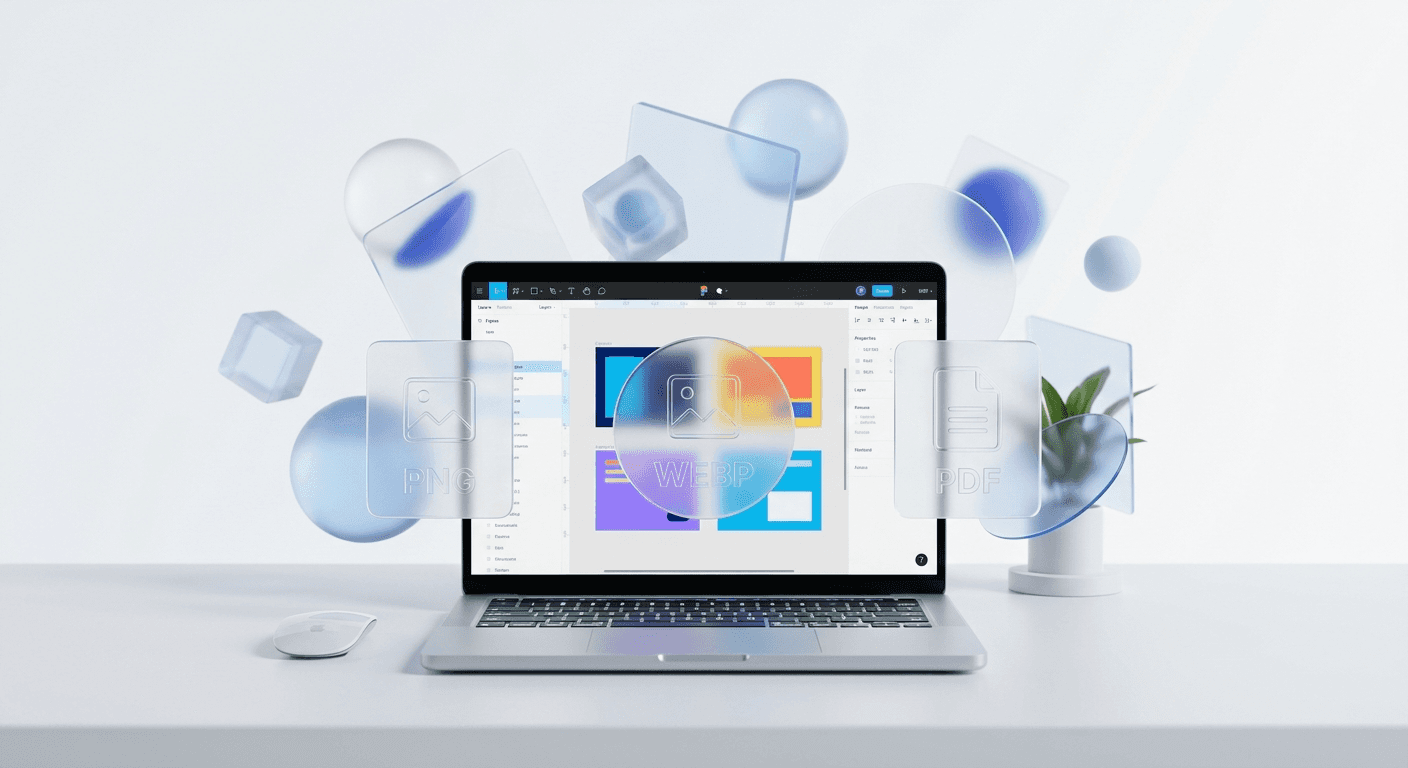
The best image formats for social media 2026 are WebP for high-performance web previews, PNG-24 for lossless graphics, and PDF for high-conversion LinkedIn carousels. Choosing the correct format prevents platform algorithms from compressing your designs into blurry, unprofessional files.
The best image formats for social media 2026 prioritize a balance between visual fidelity and loading speed. In our experience, high-resolution displays on modern smartphones make technical export settings more important than ever. If you use the wrong file type, platforms like Instagram or LinkedIn will apply aggressive compression that ruins your brand credibility. We recommend a format-first strategy where the choice of file depends entirely on the destination platform and the content type.
Modern design workflows require precision during the export phase. We use specific settings to ensure our visual assets maintain their edge. This guide provides the technical specifications you need to stop guessing and start shipping professional content that looks premium on every screen.
Which are the best image formats for social media 2026?
The best image formats for social media 2026 are WebP, PNG, and PDF, depending on the specific platform and post type. WebP is the current standard for web-based performance, while PNG remains the primary choice for static social media graphics requiring high color accuracy. For professional networking platforms, the PDF format has emerged as the most effective way to share multi-page educational content.
Each format uses a different compression algorithm to handle pixel data. PNG uses the LZ77 algorithm, which is a lossless data compression technique that preserves every pixel exactly as it was designed. In contrast, WebP uses more advanced predictive coding to reduce file sizes by up to 26% compared to PNGs (Google Developers, 2024). This efficiency is why we see a massive shift toward WebP for featured images and blog headers.
Format | Primary Use Case | Compression Type | Transparency Support |
|---|---|---|---|
PNG-24 | Static Feed Posts | Lossless | Full |
WebP | Web & Blog Previews | Lossy/Lossless | Full |
LinkedIn Carousels | Mixed | No | |
JPG | Photography | Lossy | No |
Selecting the right format is the first step in a professional marketing workflow. According to research by Statista (2024), over 99% of social media users access platforms via mobile devices. These users often operate on limited bandwidth, meaning your files must be small enough to load instantly but high enough in quality to remain sharp on Retina and Super Retina displays. We find that founders who ignore these technical specs often wonder why their beautiful Figma designs look pixelated once they hit the live feed.
How do you choose between webp vs png social media exports?
The choice between webp vs png social media exports comes down to the balance of file size and platform compatibility. WebP is an image format developed by Google that provides superior lossy and lossless compression for images on the web. PNG is a bitmapped image format that uses lossless data compression. For most social media uploads, PNG-24 is the safer choice for high-fidelity graphics, while WebP is the winner for site performance and blog thumbnails.
In our experience, PNG-24 is the most reliable format for Instagram and X (formerly Twitter). These platforms have built-in compression engines that can sometimes struggle with the complex containers of a WebP file, leading to unexpected color shifts. However, for your own website or as a featured image on a platform like Substack, WebP is the superior choice. It significantly reduces page load times without a visible drop in quality. A Google Developers study (2024) found that WebP lossless images are 26% smaller in size compared to PNGs. This reduction in data is vital for maintaining a fast user experience on your landing pages.
We recommend using PNG for any graphic that includes fine text or sharp geometric lines. Because PNG is lossless, it prevents the "ringing" or blurring around text that often occurs with lossy formats. When you export from Figma, always select PNG-24 rather than PNG-8. The 24-bit version supports over 16 million colors, which is necessary to avoid banding in gradients and brand-specific color palettes. WebP remains an excellent secondary format for archiving or for use in web-based portfolios where storage space and speed are prioritized over universal social media upload compatibility.
Why is the pdf carousel format essential for B2B growth?
The pdf carousel format is a specific file structure that LinkedIn treats as a document upload rather than a standard image gallery. This format is the only way to create the seamless, horizontal swiping experience that has become the gold standard for educational content on the platform. Unlike a series of individual images, a PDF allows for a cohesive narrative that users can flip through without the UI getting in the way.
According to social media performance data from Socialinsider (2025), LinkedIn documents generate significantly higher engagement rates compared to single image posts. The PDF format allows the platform to index the text within your slides, making your content more discoverable through internal search. This is a massive advantage for SaaS founders and agency owners who want their thought leadership to reach a wider audience. Because the text is rendered as vectors within the PDF, it remains perfectly sharp regardless of how much the user zooms in on their mobile device.
We build our Figma carousel templates to work specifically with this document-first approach. When you export a multi-frame design as a single PDF, you maintain the precise spacing and layout of your brand identity. This prevents the platform from reordering your slides or adding unwanted borders between your content. For 2026, the PDF format is not just an option; it is the primary vehicle for high-conversion B2B marketing. It turns a simple social post into a professional resource that users can download, save, and share with their internal teams.
Can you use svg for social media uploads in 2026?
The answer is no; you cannot directly upload svg for social media feed posts on most major platforms. SVG is an XML-based vector image format for two-dimensional graphics with support for interactivity and animation. While SVGs are the backbone of modern web design and icon sets, social networks like Instagram, TikTok, and LinkedIn do not support the .svg file extension for standard posts due to security and performance concerns.
Despite this limitation, SVGs are a critical part of the design workflow. We use SVGs to transfer logos, icons, and complex illustrations from design tools into our final social media layouts. Using vectors ensures that your brand assets never lose quality, no matter how much you resize them within your design software. When it is time to export for social media, these vector assets are rasterized into high-resolution PNG or WebP files. This process captures the mathematical precision of the SVG while converting it into a format that social media servers can actually process and display to your audience.
One exception to the SVG ban is for developers using social platforms as a portfolio. Some developer-focused tools allow SVG embeds, but for the general marketer or founder, the SVG is an intermediary step. Always keep your master assets in SVG format to maintain a future-proof design system. This allows you to scale up for a physical billboard or down for a favicon without ever seeing a single pixel. For social media, consider the SVG your "source of truth" and the PNG your "distribution vehicle."
How does image compression figma settings affect post quality?
The image compression figma process happens during the export phase and significantly impacts how your final post appears on high-density displays. Figma does not apply heavy compression to PNG exports by default, which is why your files might sometimes exceed platform size limits. To ensure your designs look sharp, we suggest exporting at 2x or 3x scale rather than the default 1x setting.
Exporting at a higher scale provides the platform with more pixel data to work with. When Instagram or X shrinks your 2x image down to fit the feed, the result is much crisper than if you had provided a 1x image that the platform then had to stretch. We recommend a standard 1080x1350 pixel frame for portrait carousels, but we export it at 2160x2700 pixels (2x). This technique effectively hides the artifacts caused by the platform's internal social media file types processing. It ensures that your thin lines and small typography remain legible even after the inevitable compression occurs.
We find that founders often make the mistake of using the "Export as JPG" setting in Figma for graphics with text. JPG is a lossy format that uses discrete cosine transform (DCT) to discard data that the human eye is less likely to notice. While this is great for photos of landscapes, it is disastrous for high-contrast graphics and text. The algorithm creates "noise" around the edges of letters, making your professional design look amateur. Always stick to PNG or PDF exports for any layout that relies on typography and clean geometric shapes. If your file size is too large, use a dedicated compression tool like TinyPNG after the export, which provides better results than the native Figma JPG export.
Which social media file types perform best on mobile devices?
The social media file types that perform best on mobile are those that load in under 200 milliseconds while maintaining a high pixel density. For static images, PNG-24 is the gold standard for quality. For animated content, MP4 has largely replaced the GIF format because it offers better color depth at a fraction of the file size. Mobile users have high expectations for visual quality, and slow-loading or blurry images lead to immediate scrolls.
In our experience, the portrait aspect ratio (4:5 or 9:16) is essential for mobile performance. A portrait image takes up more vertical real estate on a smartphone screen, which increases the likelihood of user engagement. According to Instagram's official documentation (2024), the recommended resolution for a portrait post is 1080 pixels wide by 1350 pixels tall. If you upload an image with a different ratio, the platform may crop or pad your image, which can result in a loss of visual impact. We always design with the mobile-first constraint in mind to ensure our content fits perfectly within the user's natural scrolling habits.
To optimize for mobile, you must also consider the color profile of your images. Most mobile screens today use the Display P3 color gamut, which can show more vibrant colors than the traditional sRGB standard. However, social media platforms often convert everything to sRGB during the upload process. To avoid color shifts, we recommend setting your Figma color space to sRGB before you start designing. This ensures that the colors you see on your monitor are the same colors your audience sees on their phones. Consistency is the foundation of a premium brand identity, and managing these technical details is how you achieve it.
How do you optimize your 2026 export workflow?
Optimizing your workflow for the best image formats for social media 2026 requires a disciplined approach to file management and export settings. Start by creating a dedicated export page in your Figma file where you keep the final versions of your graphics. This keeps your working space clean and ensures you are always exporting the correct, approved versions of your content.
Use the 2x export setting for all PNG files to maintain sharpness on mobile.
Export multi-slide carousels as a single PDF for LinkedIn to maximize engagement.
Check your file sizes; keep static images under 1MB to avoid aggressive platform compression.
Apply the sRGB color profile to all documents to ensure color consistency across devices.
Avoid using JPG for any graphic that contains brand typography or vector icons.
A fast workflow is about more than just speed; it is about reliability. We suggest using Figma's "Export" panel to save presets for different platforms. For example, you can create an "Instagram Portrait" preset that automatically exports at 2x PNG, and a "LinkedIn Carousel" preset that exports as a PDF. Having these presets ready means you spend less time in the export dialog and more time building your core product. For founders who are scaling quickly, these small efficiencies add up to hours of saved time every month.
The final step in any professional workflow is a manual quality check. Before you schedule your posts, send the files to your phone and view them in the native gallery app. If the text looks soft or the colors look dull, revisit your export settings. High-quality visual content is a competitive advantage in a crowded feed. By mastering the technical side of webp vs png social media choices and understanding the power of the pdf carousel format, you position your brand as a leader in your space. Professionalism is found in the details, and your image quality is the first detail your audience will notice.



