How to Design Infographics in Figma for B2B Marketing
Learn to design infographics in Figma optimized for social carousels. Use data visualization Figma techniques to create high-converting B2B visual data posts.
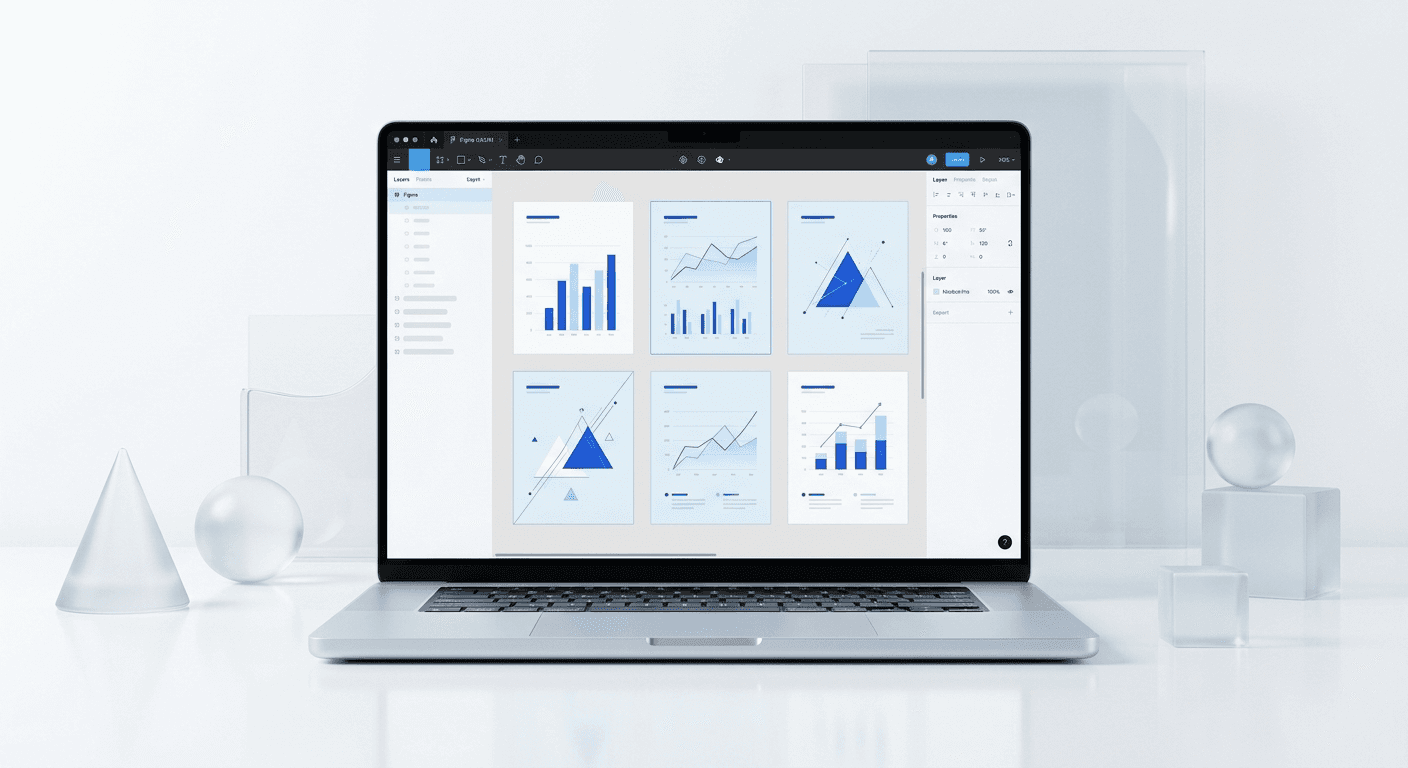
To design infographics in Figma for modern B2B marketing, you must transition from traditional tall layouts to modular micro-infographics. The most effective approach involves using Figma’s Auto Layout and component variants to build 1080x1350px frames that function as individual slides in a social media carousel.
To design infographics in Figma, you must prioritize legibility and modularity over complex, sprawling layouts. B2B buyers consume information in short bursts on social feeds, making the traditional long-form infographic obsolete for platforms like LinkedIn. Instead of one large image, we break data down into digestible slides that guide a reader through a narrative. This method ensures your visual data remains readable on mobile devices where the majority of B2B professionals consume content.
Why should B2B brands design infographics in Figma?
B2B brands design infographics in Figma because the platform allows for rapid iteration and real-time collaboration that traditional design software cannot match. The shift toward visual storytelling is driven by the fact that visual content is 43% more persuasive than text alone (Bilateral Solutions, 2023). By using a tool that supports live components, marketing teams can update data across dozens of assets simultaneously without manual rework.
Setting up a workspace to design infographics in Figma requires a shift in how you perceive document scale. While traditional print designers work in inches, social media requires pixel-perfect accuracy at a 1080x1350 resolution for the highest vertical engagement. We recommend building a layout grid with 12 columns and a 40-pixel gutter to ensure every chart element aligns with the headline and body text. This structured approach prevents visual clutter, which is the primary reason B2B prospects stop scrolling. By using Figma’s Auto Layout on every chart component, you ensure that as your data changes, the surrounding labels and legends adjust automatically. This efficiency is why modern marketing teams are moving away from Adobe Illustrator and toward Figma for their data visualization needs. A clean grid ensures your social media stat graphics remain legible on mobile screens where 57% of LinkedIn traffic originates (LinkedIn, 2024).
Infographics act as social proof and educational tools. When you present original research or industry benchmarks, you establish authority in your niche. Visualizing this data makes it 6.5 times more likely to be remembered compared to hearing it (Bilateral Solutions, 2023).
How do you format data visualization Figma layouts for carousels?
The answer is to use a 1080x1350 pixel frame size which provides 25% more screen real estate than a standard square post. Data visualization Figma layouts must be broken into a sequence: one key takeaway or one specific chart per slide. This horizontal progression allows the reader to focus on a single data point at a time, increasing comprehension and retention for complex B2B topics.
We find that the most successful B2B carousels follow a specific narrative structure for their data. Slide one introduces the problem or a surprising statistic. Slide two provides the context. Slides three through seven dive into the visual evidence using individual charts. Slide eight summarizes the findings, and slide nine provides the call to action. This structured flow turns a static set of numbers into a compelling story that drives engagement. Research indicates that LinkedIn carousels generate 3.2 times more reach than static images, making this the ideal format for your visual data (Socialinsider, 2023). By focusing on one chart per frame, you ensure that the text is large enough to read without zooming, which is essential for accessibility and user experience on mobile platforms.
Typography plays a significant role in these layouts. Use a clear, sans-serif font for data labels. Ensure that your primary data points are at least 32px to 40px in size. Secondary labels can be smaller but should never drop below 16px for legibility reasons.
Which figma chart plugins speed up the design process?
The best figma chart plugins are Chart, Dataviz, and Figpie. These tools allow you to import data directly from Google Sheets or JSON files to generate accurate bar charts, line graphs, and scatter plots. Using these plugins eliminates the need to manually draw vector shapes for every data point, which reduces the margin for error in your visual representations.
Using the Chart plugin is a standard practice for professional designers who need to create precise visualizations. This plugin supports a wide variety of chart types and allows you to sync your Figma layers with live data sources. This means if your survey results change, you can refresh the chart within your Figma frame in seconds. We prefer this workflow because it maintains the integrity of the data while giving us full control over the aesthetic styling. Accuracy is paramount in B2B marketing; 67% of B2B buyers say they rely more on content that uses data and research to support claims (Demand Gen Report, 2023). By automating the generation of these graphics, you spend less time on manual vector work and more time on the strategic narrative of your content. These plugins also support accessibility features, helping you maintain high contrast ratios for your data series.
Plugin Name | Best Use Case | Data Input Type |
|---|---|---|
Chart | Professional bar and line charts | JSON, CSV, Google Sheets |
Dataviz | Quick, stylized charts | Manual entry |
Figpie | Circular and pie charts | Manual entry |
How do you design saas infographic templates for LinkedIn?
The answer is to build a library of component-based saas infographic templates that use Figma’s Auto Layout and color tokens. A template system allows you to swap out a bar chart for a pie chart while keeping the header, footer, and branding consistent. This modularity is what separates professional B2B brands from amateur creators who design every post from scratch.
When we build templates, we start by defining the global styles for the brand. This includes the primary brand colors, a secondary palette for data visualization, and a consistent typography scale. In our experience, SaaS founders who use a template-based system can produce high-quality visual content in a fraction of the time it takes to hire a freelancer. Consistency is key to brand recognition; using the same layout patterns across every carousel helps your audience identify your content in a crowded feed. We recommend checking out modern Figma carousel templates to see how professional systems handle these layout challenges. By using components for repetitive elements like source citations or logo placements, you ensure that your team never misses a branding detail. This systematic approach to design allows you to scale your content production without sacrificing the premium look that B2B audiences expect from established companies.
Focus on creating a 'Master Slide' that contains your grid and typography. Duplicate this slide for every frame in your carousel. Use variants to switch between different data visualization styles within the same layout structure.
What makes b2b visual data effective for lead generation?
The answer is that b2b visual data provides immediate value by simplifying complex concepts and proving claims with evidence. Visualized data is shared 3 times more often than other types of content on social media (HubSpot, 2023). This increased shareability expands your reach to new prospects who are looking for industry insights and benchmarks.
B2B buyers are looking for reasons to trust a vendor. Providing clear, visual evidence of your product’s impact or your industry expertise builds that trust faster than a sales pitch. In a recent study, 82% of B2B marketers reported that visual content is a primary part of their strategy because it helps communicate value propositions clearly (Content Marketing Institute, 2024). When you design infographics in Figma, you are not just making a pretty picture; you are creating a conversion asset. For example, a chart showing the ROI of your software compared to manual processes is a powerful tool for a founder trying to justify a purchase to their board. These graphics are also highly reusable. A single chart designed for a LinkedIn carousel can be exported and used in a pitch deck, a blog post, or an annual report, maximizing the value of your design efforts.
Visualized data acts as a shortcut for the brain. It allows B2B buyers to grasp the scale of a problem or the benefit of a solution in seconds, rather than minutes of reading.
Why are social media stat graphics better than text posts?
The answer is that social media stat graphics stop the scroll by providing high-contrast visual interest that text-only posts lacks. Images on LinkedIn receive 2 times higher comment rates than text-only posts (LinkedIn, 2024). For a SaaS company or agency, this engagement is the first step in the lead generation funnel.
The human brain processes images 60,000 times faster than text (Bilateral Solutions, 2023). On a platform like LinkedIn, where users spend an average of only a few seconds on each post, speed of communication is your greatest advantage. Text-heavy posts require high cognitive effort from the reader, whereas a well-designed bar chart or a simple comparison graphic delivers the message instantly. We see many founders struggle with engagement because they try to explain complex ideas in long paragraphs. By converting those ideas into social media stat graphics, you lower the barrier to entry for your audience. This approach also helps you stand out in an environment where AI-generated text is becoming common. Original, well-designed visuals are a signal of human effort and brand quality. High-quality design communicates that your company is established and pays attention to detail, which are critical traits for any B2B service provider or software company.
To maximize the impact of these graphics, keep the data simple. Focus on one major stat per slide. Use color to highlight the most important part of the chart, and keep the background clean to avoid distractions.
How do you maintain brand consistency in Figma infographics?
The answer is to use Figma’s local styles and variables to lock in your brand’s visual identity across all data visualization Figma projects. By defining a specific color palette for your charts and sticking to a set typography scale, you ensure that every infographic looks like it belongs to the same brand, regardless of who designed it.
Maintaining a cohesive brand identity is vital for building long-term recognition. When you design infographics in Figma, you should create a dedicated page for your 'Design System' within the file. This page should house your color swatches, font styles, and icon library. Using variables for colors allows you to switch between light and dark modes or update a brand color across an entire 10-slide carousel in one click. This level of control is why professional agencies prefer Figma for social media content production. Research shows that consistent brand presentation across all platforms can increase revenue by up to 23% (Forrester, 2023). For a startup or a scale-up, this consistency signals professionalism and reliability. It tells your prospects that if you care this much about the design of a social media post, you likely care just as much about the quality of your core product or service.
Define a 5-color palette specifically for charts.
Use a consistent font weight for all axis labels.
Apply a standard corner radius to all bars and containers.
Keep the background color consistent throughout the carousel.
What common mistakes should you avoid in Figma infographic design?
The answer is to avoid overcrowding slides with too much information and using fonts that are too small for mobile users. A common mistake when people design infographics in Figma is trying to fit a desktop-sized chart into a mobile-sized frame. This leads to a poor user experience and low engagement as readers cannot quickly interpret the data.
Over-complicating the data is another frequent error. You should aim to highlight one clear trend or comparison per slide. If a chart requires a paragraph of text to explain, it is too complex for social media. Instead, break that complex chart into three separate, simpler slides that build on each other. Another mistake is failing to provide context or a 'so what' for the data. Simply showing a graph is not enough; you must tell the reader why these numbers matter to their business. Additionally, pay attention to contrast. Ensure your text has a high contrast ratio against the background to meet accessibility standards. B2B content should be inclusive and easy to read for everyone. Finally, always check your work on a mobile device before publishing. What looks clear on a 27-inch monitor may be unreadable on a 6-inch phone screen.
By following these principles and utilizing Figma's powerful feature set, you can create infographics that do more than just look good. They will drive meaningful engagement, build brand authority, and generate leads for your B2B business.
References
Visual Marketing Statistics for 2023. Bilateral Solutions, 2023.
LinkedIn Content Strategy Report. LinkedIn, 2024.
LinkedIn Engagement Rate Benchmarks. Socialinsider, 2023.
B2B Content Marketing 2024: Benchmarks, Budgets, and Trends. Content Marketing Institute, 2024.
The Power of Visual Communication in B2B. HubSpot, 2023.
B2B Buyer Behavior Survey Report. Demand Gen Report, 2023.
The Economic Impact of Brand Consistency. Forrester, 2023.
Social Media Image Engagement Stats. WebFX, 2023.



