Figma auto layout for marketing: Master responsive social assets
Master Figma auto layout for marketing to build responsive social media templates. Speed up design workflow and create dynamic carousels that resize with copy.
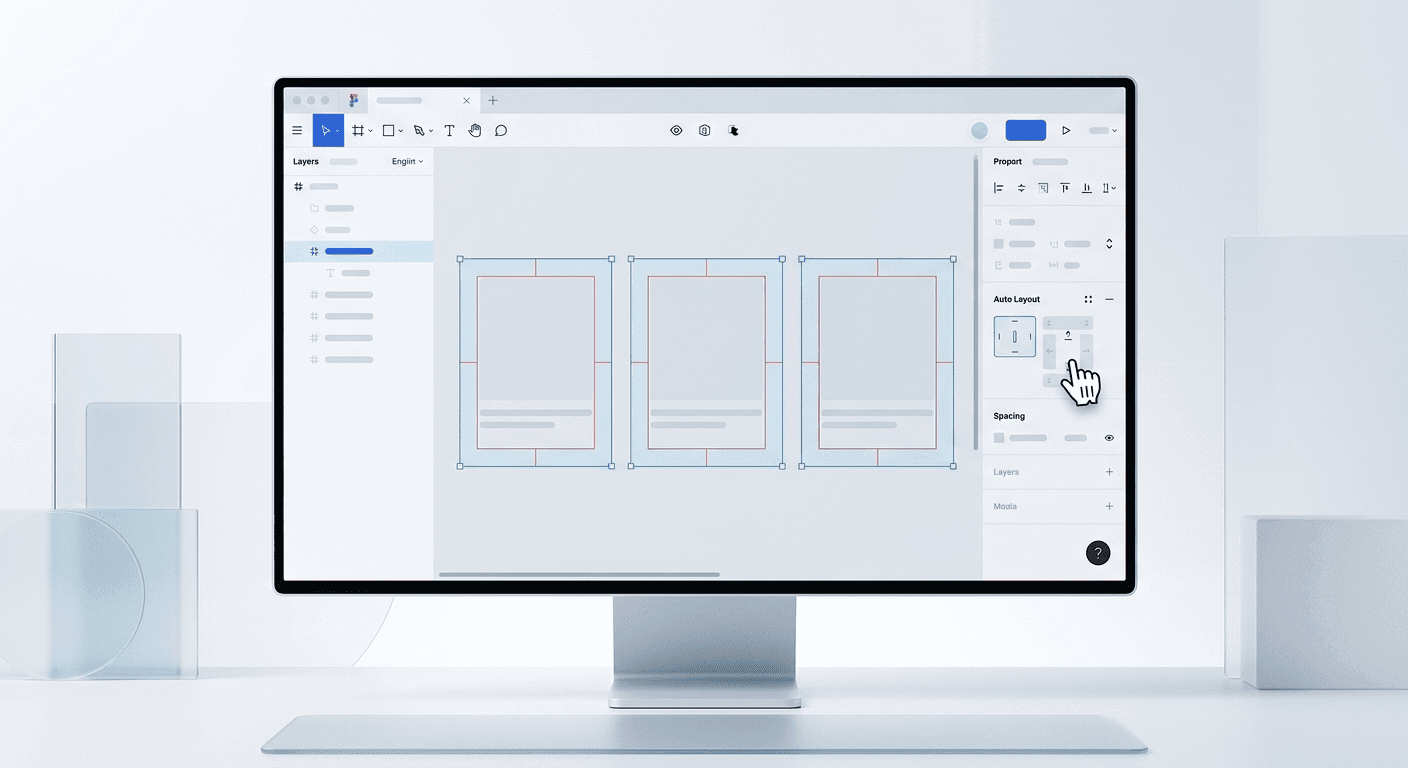
Figma auto layout for marketing is a layout engine that allows design frames and components to grow or shrink automatically based on the text or images inside them. We use this system to build responsive social media templates that adapt to varying lengths of copy without manual pixel-pushing. By defining rules for padding, spacing, and alignment, you ensure that a three-line headline looks just as polished as a five-line one. This approach shifts the design process from static artboards to dynamic systems that scale across LinkedIn, Instagram, and Twitter instantly.
Marketing teams often waste hours resizing boxes and re-centering text when content changes during the approval process. We built our entire production system at usevisuals on the principle that the content should dictate the container, not the other way around. When you apply auto layout to your marketing assets, you eliminate the friction of small edits. You stop being a pixel-mover and start being a content strategist who uses design as a scalable tool for growth.
What is Figma auto layout for marketing?
Auto layout is a property you apply to frames that organizes their children into a predictable, responsive structure. It is the design equivalent of Flexbox in web development, allowing elements to stack vertically or horizontally with mathematical precision. In a marketing context, this means your call-to-action buttons, headline blocks, and testimonial cards maintain their internal proportions regardless of the platform or device. We find that this feature is the single most important tool for maintaining a premium brand identity across high-volume social output.
The answer to why this matters lies in the shift toward content-led growth for SaaS and startups. According to a 2024 survey by Figma, teams using established design systems and automated layout features report a 34% increase in design speed. For a founder or a lean marketing team, this efficiency means the difference between posting once a week and posting daily. By treating your social posts as dynamic templates, you ensure that every asset follows your brand guidelines automatically. This consistency builds trust with your audience, making your startup look like an established category leader rather than a side project. When you build a template once, it serves as the foundation for hundreds of future posts without requiring a dedicated graphic designer for every minor copy change.
Auto layout allows you to define three critical behaviors: Hug contents, Fill container, and Fixed width. Understanding these is the key to mastering the tool. Hugging makes the frame shrink-wrap its contents. Filling makes the frame expand to take up all available space. Fixed keeps the size constant regardless of what is inside. We use these rules to build carousels that look perfect on both mobile and desktop views without extra work.
How does responsive design fix the carousel content problem?
Responsive design in Figma marketing assets ensures that your visual hierarchy remains intact even when you swap out short headlines for long, data-driven insights. Traditional design requires you to manually move every arrow, icon, and text layer every time the character count changes. With auto layout, these elements are tethered to each other through logical spacing rules. If your headline grows from two lines to four, the body text below it automatically shifts down, maintaining the exact vertical gap you specified in your brand style guide.
We see many creators struggle with text-heavy carousels because they treat every slide as an isolated painting. This is a mistake. A carousel is a sequence of information, and the layout should be a vessel for that information. In our experience, using smart layout configurations allows us to test different messaging versions in seconds. If a specific hook isn't performing, we change it in the master component, and every slide in that series updates its spacing to accommodate the new length. This flexibility is vital for performance marketing where rapid iteration is the only way to find a winning creative. You no longer have to fear the "text is too long" feedback from your stakeholders because the layout adapts to the reality of the copy.
Standardizing your layout logic also has measurable impacts on brand perception and conversion rates. Research from Nielsen Norman Group (2023) highlights that visual consistency reduces cognitive load for the user, allowing them to focus on the message rather than deciphering the interface. In the context of a LinkedIn scroll, a consistent visual rhythm in your carousels signals professional authority. When every slide uses the same internal padding and alignment logic, the transition between slides feels smooth and intentional. This professional finish differentiates a premium SaaS brand from a low-budget competitor. By automating these design choices through auto layout, you guarantee a high-quality output every time you hit export, regardless of how much content you pack into a single slide or how many team members are working on the file.
Why should you use vertical and horizontal stacks?
Vertical stacks are the backbone of social media cards. They stack the headline, the body text, and the footer in a clean column. Horizontal stacks are perfect for progress bars, star ratings, or author bylines where the profile picture sits next to the name. We combine these two directions by nesting frames inside each other to create complex, robust layouts.
Nesting is where the true power lies. You can have a horizontal stack of tags (like "SaaS" and "Growth") inside a vertical stack of a testimonial card. If you delete one tag, the others shift over to fill the gap. This behavior prevents broken layouts and keeps your designs looking intentional even during heavy editing phases.
Why is a smart layout better than manual positioning?
A smart layout replaces the need for alignment tools and manual grouping. When you drag an element into an auto layout frame, Figma automatically snaps it into the correct position based on your predefined spacing. This removes the human error of being "one pixel off," which is often the subtle difference between a professional-looking asset and an amateur one. For agency owners managing multiple brand accounts, this precision ensures that the quality remains high even when moving at high speeds.
Consider the time spent on "fiddling" with design. We estimate that 40% of a designer's time is spent on non-creative alignment tasks. By setting up auto layout once, you reclaim that time for high-level strategy. This is especially true for text-heavy content like listicles or educational carousels. When you add a new item to a list, the entire frame grows. When you remove a quote, the frame shrinks. This immediate feedback loop allows you to see the final product as you type, making the design process feel more like writing a document than building a graphic.
Feature | Manual Positioning | Auto Layout (Smart) |
|---|---|---|
Adding Content | Manual resizing of frames | Frame resizes automatically |
Alignment | Requires alignment tools | Stays aligned by default |
Spacing | Eye-balling or measuring | Defined by pixel-perfect rules |
Workflow Speed | Slow and repetitive | Fast and scalable |
Consistent design is not about making everything look the same; it is about making everything behave the same. Auto layout is the system that enforces that behavior.
How do you build dynamic templates for multi-slide posts?
Building dynamic templates for carousels starts with creating a "Main Slide" component. This slide should have a top-level auto layout applied to it. We recommend using a 1080x1350 frame for LinkedIn and Instagram to maximize screen real estate. Within this frame, you set your margins (typically 48px to 80px) and your vertical gap between elements (typically 24px to 48px). Once this structure is in place, any text you type into the headline layer will push the rest of the content down automatically.
To scale this across a 10-slide carousel, you turn that slide into a Figma Component. You can then create instances of that component for each slide. If you decide that the padding should be tighter or the font should be larger, you edit the Main Component once, and all 10 slides update instantly. This 1-to-many relationship is the foundation of speeding up design workflow. It allows a single marketing manager to produce the volume of a full creative team without sacrificing quality or brand integrity.
Maximizing the efficiency of these templates requires a deep understanding of content-first design. According to data from Socialinsider (2024), carousel posts on LinkedIn receive 3.1x more engagement than standard image posts. However, the cost of producing these carousels often outweighs the benefits if done manually. By using dynamic templates, we have reduced the production time of a 10-slide carousel from two hours to fifteen minutes. This drastic reduction in overhead allows startups to maintain a consistent presence in the feed without the high retainer fees of an external agency. When your templates are built correctly, your focus shifts from "How do I make this look good?" to "What is the most valuable insight I can share today?" This shift is the hallmark of a mature marketing operation that prioritizes results over process. You create a system that works for you, rather than you working for the software.
What are component properties in a marketing context?
Component properties are a set of controls you can add to your Figma components to toggle elements on or off, swap icons, or change text without entering the layers panel. For marketing assets, this is a game-changer. You can create a slide component with a "Type" property that lets you switch between a "Quote Slide," a "List Slide," and a "Big Headline Slide" from a simple dropdown menu. This keeps your workspace clean and your workflow focused on content creation.
We use text properties to link specific layers to the sidebar controls. This means you can update the slide headline and the author's name without ever clicking into the canvas. It prevents accidental movement of layers and ensures that the styling remains locked. For teams using Figma-based design templates, these properties allow non-designers to create professional-grade visuals by simply filling out a form-like interface in the sidebar. It democratizes design and empowers founders to ship content faster.
How do Boolean and Instance Swap properties work?
Boolean properties are simple on/off switches. You can use them to hide or show an "Arrow" icon on your slides. This is useful for the last slide of a carousel where you might want to hide the "Next" arrow and show a "Follow" button instead. Instead of having two separate slide designs, you have one slide with a toggle switch.
Instance Swap properties allow you to change an icon or a logo within a component. If you have a set of 50 brand icons, you can set the icon layer as a swap property. This allows you to pick the correct visual for your slide from a searchable list in the sidebar. It eliminates the need to manually copy-paste and align new icons every time you build a new slide deck.
How do we speed up design workflow for LinkedIn assets?
Speeding up design workflow for LinkedIn assets requires a move away from custom designs for every post and toward a modular system. We advocate for a "LEGO block" approach where every post is assembled from pre-built, auto layout-enabled pieces. This methodology allows you to focus on the narrative arc of your carousel while the system handles the visual polish. When your layout is automated, you can experiment with 10 different hooks in the time it used to take to design one.
Another major time-saver is the smart layout feature within Figma's "Wrap" function. Introduced in 2023, Wrap allows items in a horizontal stack to automatically move to a new line when they run out of space. This is perfect for lists of logos, feature tags, or team member headshots. Before this feature, you would have to manually rearrange multiple rows of items whenever you added a new one. Now, the frame handles the math for you, ensuring that your social proofs and feature lists always look perfectly balanced regardless of how many items you include.
The business case for this level of automation is clear when looking at the scalability of content teams. A report by Marq (formerly Lucidpress) in 2023 found that consistent brand presentation can increase revenue by up to 23%. However, maintaining that consistency manually is a significant drain on resources. By implementing Figma auto layout for marketing, we allow our clients to achieve this consistency with zero additional effort. The speed gains are not just about doing things faster; they are about doing things better. When the mechanical part of design is solved, you have more mental energy to spend on the creative part: the storytelling, the data, and the call to action. This is how small teams out-compete larger companies with bigger budgets. They don't work harder; they use more efficient systems to dominate the attention economy on platforms like LinkedIn and Instagram.
Is auto layout too complex for non-designers?
The initial learning curve of auto layout can be intimidating for those used to drag-and-drop tools. However, the logic is very similar to how you would structure a document in a word processor. Once you understand that every box has its own rules for padding and growth, the complexity vanishes. We find that founders and marketers actually prefer this system because it is logical and predictable. It removes the "magic" of design and replaces it with a set of reliable rules.
If you find it difficult to start from scratch, we recommend starting with a pre-built system. Using a template that already has figma auto layout for marketing applied allows you to see how the experts structure their frames. You can click into the layers, see the settings for "Fill" and "Hug," and learn by reverse-engineering. This is the fastest way to gain proficiency without the frustration of building responsive components from a blank canvas. Most marketing assets only require a few basic patterns that, once mastered, will serve you for years.
Focus on the container: Always start by grouping your related text layers and applying auto layout.
Master the "Fill" setting: This is the secret to making text wrap correctly within a social media card.
Use consistent padding: Stick to a 4px or 8px grid to ensure your designs look balanced.
Name your layers: Even with auto layout, a clean layers panel makes editing much faster for your team.
Summary of mastering Figma auto layout
Mastering figma auto layout for marketing is the most effective way to scale your visual content without hiring a full-time designer. By moving away from static frames and toward responsive design systems, you ensure your brand remains premium and cohesive across every social touchpoint. We have seen firsthand how dynamic templates and component properties transform a marketing department from a bottleneck into a growth engine. The ability to iterate on content in real-time is no longer a luxury; it is a requirement for staying relevant in a crowded digital marketplace.
Start by converting your most-used social media slide into an auto layout frame. Experiment with the padding and spacing controls. Once you see the text adapt to your input, you will never go back to manual positioning again. Whether you are a SaaS founder or an agency owner, these tools give you the power to ship high-quality visual content that drives leads and builds authority. The design landscape is shifting toward automation, and those who adopt these systems early will have a significant competitive advantage in the years to come.



