Save Figma as PDF for LinkedIn Carousels: The 2026 Guide
Learn how to save Figma as PDF for LinkedIn carousels to maintain high resolution. Follow this guide for the exact export settings and plugins needed in 2026.
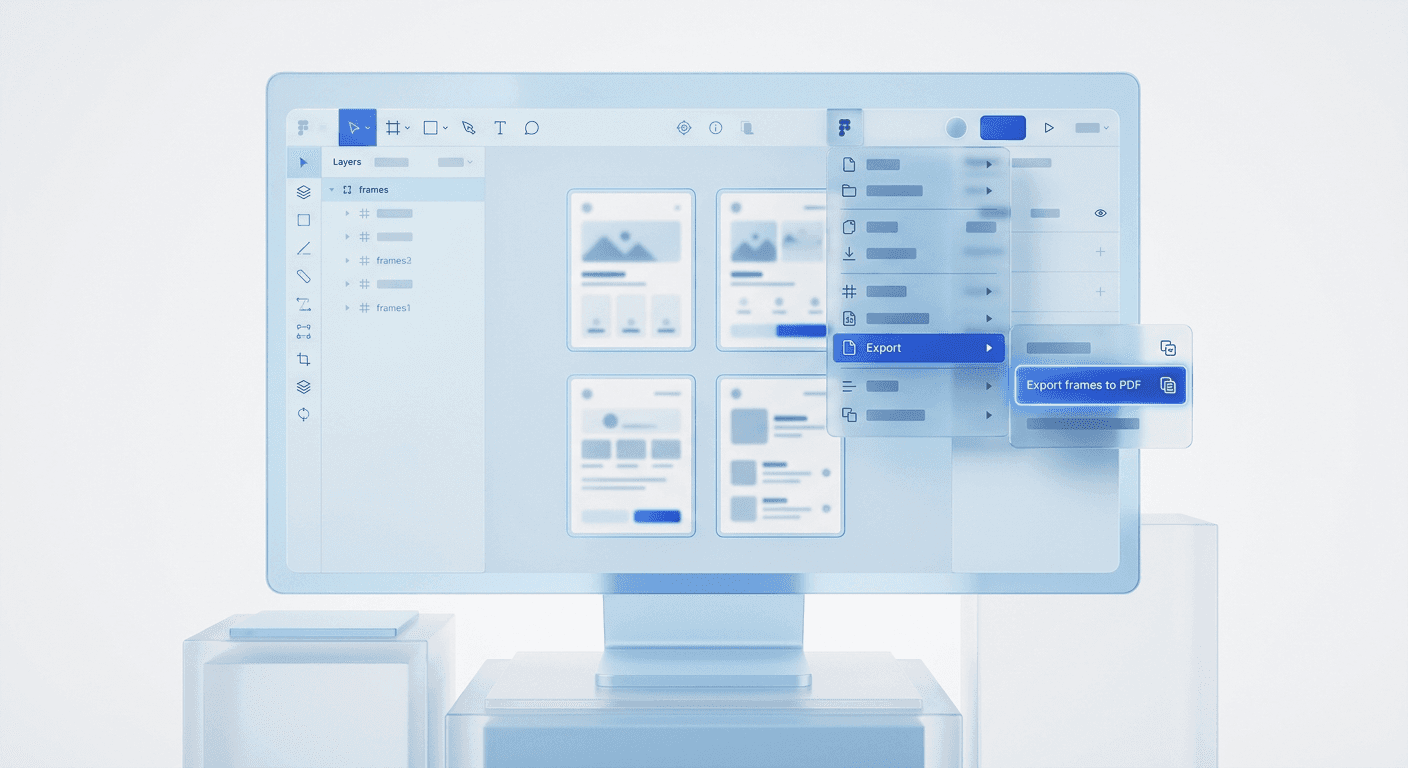
The fastest way to save Figma as PDF for LinkedIn carousels is by using the native 'Export frames to PDF' function or a specialized plugin like TinyImage. This process preserves vector quality, ensuring your document posts remain sharp and professional on all devices.
To save Figma as PDF for LinkedIn carousels, you must organize your slides into individual frames on a single page. LinkedIn does not support multi-image uploads for its document slider; it requires a single, consolidated PDF file. This specific format is what enables the swipeable interface that currently dominates B2B social media feeds.
Many founders and marketers mistakenly export individual PNG files. While images work for Instagram, they fail to trigger the LinkedIn document viewer. By following this technical guide, you will learn to export figma frames to pdf with the exact settings required for maximum engagement and brand clarity.
How do you save Figma as PDF for LinkedIn carousels natively?
The native method to save Figma as PDF for LinkedIn carousels involves the built-in export engine found in the main menu. You do not need external software to generate a basic PDF, provided your frames are named and ordered correctly. Figma exports frames based on their position on the canvas, reading from top-left to bottom-right across the workspace.
First, ensure all your carousel slides are separate frames of the same size, typically 1080x1350 pixels. Select all the frames you wish to include in the document. Go to the Figma menu (the logo icon), navigate to File, and choose Export frames to PDF. Figma will generate a single document where each frame becomes an individual page. This figma presentation export technique is the standard workflow for most professional creators.
In our experience, the native export is reliable for simple designs without heavy blending modes or complex effects. However, PDF files can become massive if you use high-resolution uncompressed images within your frames. LinkedIn has a 100MB limit for document uploads (LinkedIn Help, 2024). If your native export exceeds this limit, you may find that the platform rejects your file or processes it slowly, leading to a poor user experience for your audience. We recommend checking the file size immediately after the export finishes to avoid upload errors.
Why is the linkedin document post format vital for reach?
The linkedin document post format is the technical category for carousels that users can swipe through without leaving their feed. Unlike standard image posts, document posts are prioritized by the LinkedIn algorithm because they increase dwell time. When a user stops to read a ten-slide carousel, they spend significantly more time on your content than they would on a single image or a text-only post.
According to research, carousels on LinkedIn generate 3x more reach and 2x more engagement than any other content format (Socialinsider, 2024). This occurs because the algorithm interprets the time spent clicking through slides as a sign of high-quality, relevant content. For SaaS founders and agency owners, this visibility is a direct path to building a premium brand identity. It allows you to present complex ideas, such as UI/UX design principles or marketing frameworks, in a digestible, visual sequence that builds authority with every swipe.
Using a high resolution social media export ensures that your text remains legible even on small mobile screens. When you upload a PDF, LinkedIn treats the text as vector data rather than flattened pixels. This means that users can zoom in on your slides without encountering the blurriness typical of JPEG or PNG files. High legibility directly correlates with higher completion rates, as users are more likely to finish a carousel if the content is easy on the eyes and professionally formatted.
Which figma pdf plugin provides the best results?
A figma pdf plugin is often necessary when you need to optimize file size or control the specific order of your slides without rearranging your entire canvas. While native export is functional, plugins like TinyImage or Pitchdeck offer advanced features such as image compression and password protection. These tools are essential for power users who produce high volumes of content and need to keep their workflow fast and efficient.
We prefer using TinyImage because it allows for granular control over the quality of nested images. You can choose to downsample large photos to 72 DPI, which significantly reduces the final PDF size while maintaining visual clarity. This is particularly useful for carousels that include detailed product screenshots or high-fidelity photography. By keeping your file size under 20MB, you ensure that the carousel loads instantly for your followers, regardless of their internet speed.
Feature | Native Export | Figma PDF Plugin |
|---|---|---|
File Size Control | None | Advanced Compression |
Slide Ordering | Canvas Position | Custom Selection Order |
Vector Support | High | High |
Export Speed | Fast | Moderate |
How do you ensure a high resolution social media export?
Achieving a high resolution social media export requires setting the correct frame dimensions before you start designing. For LinkedIn carousels, the optimal size is 1080x1350 pixels, which is a 4:5 aspect ratio. This vertical format occupies more vertical space in the mobile feed, which helps your content stand out and capture attention. Square frames at 1080x1080 are also acceptable, but they provide less real estate for detailed text and imagery.
When you save figma as pdf linkedin, Figma preserves the vector properties of your typography and shapes. To maintain this quality, avoid flattening your layers or rasterizing your text before export. Keep your text layers live. If you use custom fonts, Figma will embed the necessary data into the PDF so the fonts appear correctly for everyone else. This technical detail is why PDFs are superior to image sequences; they remain perfectly crisp at any zoom level, which is a hallmark of a premium brand.
Maintaining a consistent visual identity is easier when you use structured systems. We find that template-based systems simplify the export process because the frame sizes and margins are already locked in. You can use design templates for social media to ensure that every slide you export meets the technical requirements of the platform without having to check your settings every time. This allows you to focus on the content strategy while the technical infrastructure remains stable and predictable.
How can you use figma presentation export for better sequencing?
The figma presentation export workflow is useful when your carousel is part of a larger design system. By using the 'Prototype' tab, you can define exactly how one frame flows into the next. Although the PDF export does not include interactive transitions, the order of frames in your layers panel (from bottom to top) typically dictates the order of pages in the resulting PDF. If your slides are appearing out of order, the layers panel is the first place you should look for errors.
To guarantee the correct sequence, we suggest naming your frames with a numerical prefix, such as "01_Introduction," "02_Problem," and "03_Solution." Some plugins will automatically sort your frames based on these names, which eliminates the frustration of a disorganized export. This level of organization is standard among professional agencies that manage multiple client accounts and need to ship content quickly. A structured naming convention prevents the common mistake of uploading a carousel where the call-to-action appears in the middle of the deck.
Another benefit of the presentation approach is the ability to preview your work in Figma's Presentation Mode. This allows you to see how the slides transition and whether the visual flow feels cohesive. Since LinkedIn carousels are essentially slide decks, this preview step is critical for catching layout errors or typos that might be harder to see in the standard editor view. Once the preview looks perfect, you can confidently proceed to export figma frames to pdf.
What are the most common LinkedIn PDF export mistakes?
The most common mistake when users try to save figma as pdf linkedin is ignoring the total file size and complexity of the document. While PDFs are powerful, they can become corrupted if they contain too many complex vectors or unoptimized images. If your PDF fails to upload, it is likely because the file is too large or contains a non-standard font that LinkedIn's previewer cannot render. Always stick to standard web fonts or ensure your fonts are properly embedded during the export process.
Another frequent error is using the wrong aspect ratio. If you export frames that are wide (1920x1080), they will appear small and letterboxed on mobile devices, making them nearly impossible to read. Mobile users account for approximately 57% of LinkedIn's traffic (Hootsuite, 2024), so designing for vertical or square screens is mandatory. If your content is not mobile-friendly, your engagement rates will drop, regardless of how valuable your insights are. Always test your exported PDF on a mobile device before publishing to ensure the text is legible without straining.
Incorrect frame ordering in the layers panel.
Exporting at 72 DPI instead of 144+ DPI for raster images.
Exceeding the 100MB LinkedIn upload limit.
Using a landscape aspect ratio for mobile-first audiences.
How do you upload the final PDF to LinkedIn?
The final step to save figma as pdf linkedin is the upload process itself. Navigate to your LinkedIn homepage and click on the 'Start a post' box. Look for the three dots or the 'Document' icon (it looks like a sheet of paper). Select your PDF file from your computer. LinkedIn will then prompt you to add a document title; this title is visible to users and is also indexed by search engines, so use relevant keywords here.
Once the document is uploaded, you can preview the slides within the LinkedIn interface. Use this moment to double-check the order of your frames one last time. Add a compelling caption that summarizes the value of the carousel and include 3-5 relevant hashtags. This combination of a high-quality visual document and a well-written caption is the most effective way to reach new prospects and grow your professional audience in 2026. By mastering this technical export, you position yourself as a leader who values both substance and professional presentation.
References
LinkedIn Document Ads and Posts Specifications. LinkedIn Help, 2024.
LinkedIn Engagement Rate Benchmarks. Socialinsider, 2024.
Social Media Trends Report. Hootsuite, 2024.



