YouTube Banner Design Figma Workflows for 2026 Growth
Build a flawless youtube banner design figma workflow. Learn how to configure 2026 mobile safe zones and create auto-layout templates that save time.
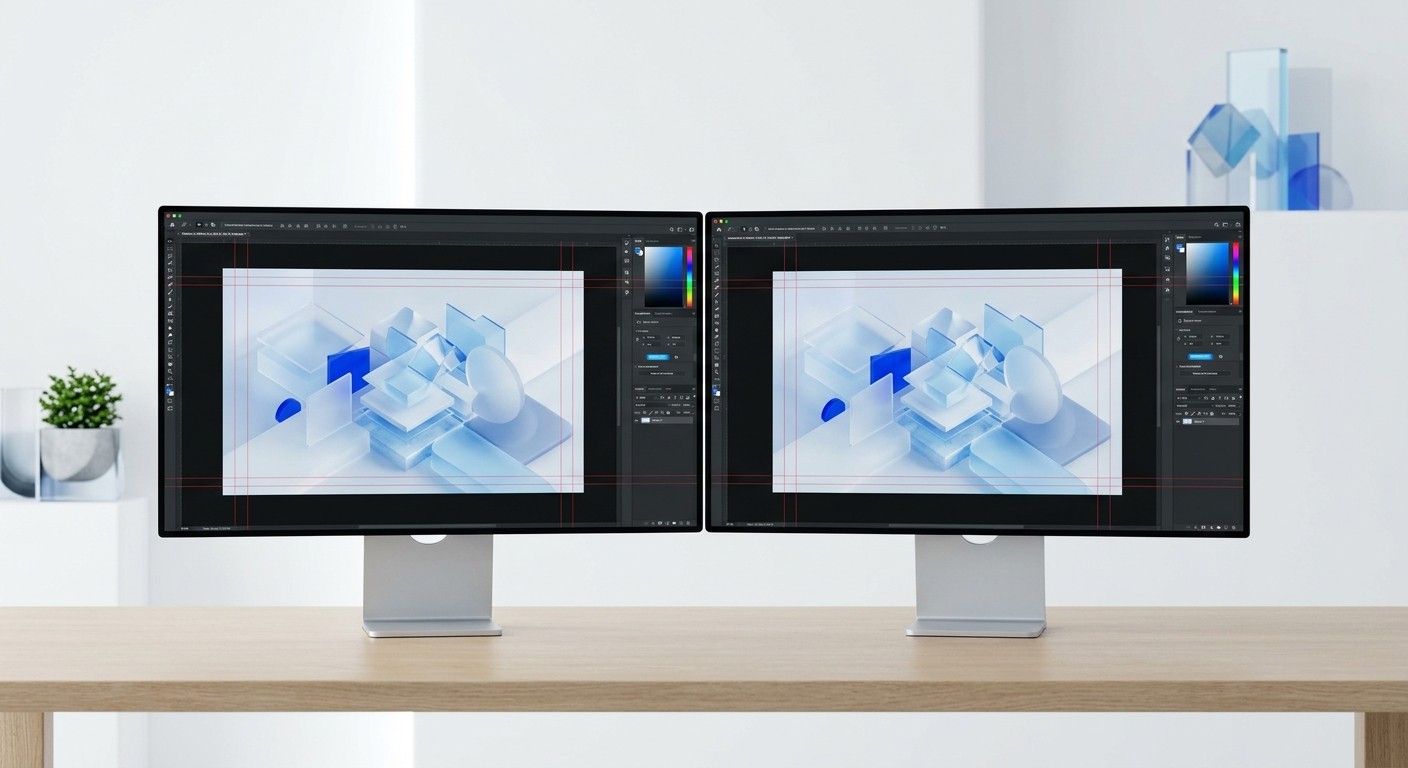
A youtube banner design figma workflow is the fastest way to build responsive channel art that scales flawlessly across televisions, desktops, and mobile screens. By setting up auto-layout templates with precise 1546 x 423 pixel safe zones, you ensure your core brand message is never cut off on smaller devices. We rely on this component-based approach to eliminate guesswork and ship professional creator assets in minutes.
What is the best youtube banner design figma setup?
The best youtube banner design figma setup is a component-based canvas configured to the maximum 2560 x 1440 pixel television resolution. This framework guarantees high-fidelity output across all platforms. We build these workspaces using transparent overlay guides to lock down the non-negotiable safe areas instantly.
A standard YouTube workspace requires precision constraints to handle dramatic cropping across different viewing environments. YouTube recommends a full banner size of 2560 x 1440 pixels to accommodate smart televisions, while keeping all critical text inside a centered safe area of 1546 x 423 pixels (Adobe, 2025). If you ignore this safe zone, your logo or call-to-action will be completely clipped on mobile phones.
Over 70% of YouTube watch time happens on mobile devices, making mobile-first constraint planning absolutely necessary for creator success (AIR Media-Tech, 2025). We structure our design system by creating a master component at the full television resolution. Next, we drop in a rectangle set precisely to the 1546 x 423 pixel safe area. We lower the opacity of this rectangle to 10%, creating a visual boundary that prevents us from placing critical typography in the danger zones.
How do youtube banner dimensions 2026 dictate layout?
The youtube banner dimensions 2026 strictly dictate layout decisions by forcing designers to center their core value proposition. The platform uses a single responsive image that crops heavily depending on the user's hardware. You must prioritize the center strip while leaving the outer edges for ambient visuals.
Device Type | Display Resolution | Cropping Behavior |
|---|---|---|
Mobile Phones | 1546 x 423 pixels | Full horizontal and vertical crop |
Tablets | 1855 x 423 pixels | Partial horizontal crop |
Desktop Monitors | 2560 x 423 pixels | Full width with heavy vertical crop |
Smart Televisions | 2560 x 1440 pixels | No cropping |
Responsive channel headers require designers to think simultaneously about four distinct screen ratios. The minimum safe area for text and logos is technically 1235 x 338 pixels, though 1546 x 423 pixels is the standard safe zone across modern smartphones (BuyCoverArtwork, 2025). Desktop monitors display a wider horizontal slice at 2560 x 423 pixels, while tablets fall somewhere in between at approximately 1855 x 423 pixels (BuyCoverArtwork, 2025).
We manage this extreme variability by treating the television dimensions as a background container. We fill the outer 2560 x 1440 pixel canvas with soft gradients or simple photographic textures. We never place faces, text, or primary branding in this extended region. Keeping the extended areas minimal ensures the design remains balanced when viewed on large living room displays. By focusing all density in the core safe zone, we eliminate the need to maintain separate files for different devices.
Why does creator branding impact subscriber conversion?
Creator branding is the visual language your channel uses to build trust and signal authority instantly. Consistent aesthetics and professional design directly correlate with higher subscriber conversion rates. Viewers decide whether to subscribe within seconds of landing on your channel page based on visual credibility.
Visual credibility dictates conversion. A clean, professionally aligned banner signals to the viewer that your video content will be equally polished and valuable.
Professional visual presentation is the most direct lever you have for improving channel performance. Updating channel art and maintaining a consistent visual identity can increase a channel's click-through rate from 2% to as high as 6% (AIR Media-Tech, 2025). When users land on a channel page, the header is the dominant visual element. A strong header must articulate a clear promise in 7 to 12 words to maximize impact and capture the viewer's attention immediately (Adobe, 2025).
We find that creators who align their banner typography, color palette, and photographic style with their video thumbnails see significantly faster audience growth. The banner is a billboard that confirms the viewer has found a high-quality resource. If the header looks pixelated or poorly cropped, viewers assume the video content shares that same lack of polish. By treating the header as premium real estate, you establish immediate authority in your specific niche.
Building a responsive header design in Figma
A responsive header design is a graphical layout built to scale and crop predictably across varying aspect ratios. In Figma, we achieve this by combining absolute positioning with auto-layout frames. This ensures that background assets stretch gracefully while the core typography remains anchored perfectly in the center.
Creating adaptive layouts requires understanding how constraints operate within digital design tools. Auto-layout in Figma is a feature that lets components resize dynamically based on their content and container boundaries. We use auto-layout to build responsive header design setups that center the value proposition automatically. By wrapping the primary text block in an auto-layout frame and centering it on the master canvas, the spacing remains pixel-perfect regardless of how the background scales.
For creators looking to bypass the manual setup, you can access our premium social media templates to deploy professional channel art instantly. We structure these files with pre-built safe areas and auto-layout text blocks. This eliminates the technical friction of alignment entirely. You just type in your channel name, apply your brand colors, and export. Maintaining strict adherence to minimum color contrast ratios of 4.5:1 ensures your text remains fully legible across all devices (IncRev, 2025).
Anchoring Your Value Proposition
Pinning your text to the center ensures it never drifts during resizing. You lock the constraints to the horizontal and vertical center of the frame. This simple step guarantees perfect alignment across every possible viewing environment.
Scaling Background Assets
Background images require different constraint settings than typography. We set our photographic textures to scale horizontally and vertically. This allows the imagery to expand to fill massive television screens without distorting.
How do you configure figma safe zones youtube layouts?
You configure figma safe zones youtube layouts by using boolean operations and layout grids to create custom masks. We draw out the specific device boundaries and group them into an overlay component. Toggling this overlay on and off provides an instant preview of how the banner crops.
Here are the specific interface elements you must avoid:
Bottom-right area: Reserved for clickable social media links and external websites.
Bottom-left area: Partially obscured by your circular profile picture.
Upper corners: Can look unbalanced if heavy elements are pushed too far from the center axis.
Visualizing the specific crop boundaries during the design phase prevents costly export errors. The platform enforces a maximum file size of 6 MB, and it accepts standard formats like JPG or PNG (SmartBannerHub, 2026). Because you are working with large resolution files, managing exports carefully is absolutely necessary. We handle the figma safe zones youtube requirements by building a semi-transparent red mask over the non-visible areas.
This mask blocks out everything outside the 1546 x 423 pixel mobile zone. When we place a logo near the edge, the mask immediately reveals if it will be cut off on smaller screens. We also map out the bottom-right corner specifically, as the platform overlays social links and a watermark in this area. Designing around these interface elements ensures your core message never competes with the platform's native buttons.
Creating a master youtube channel art template figma
A master youtube channel art template figma is a standardized, reusable file that contains your brand guidelines and grid settings. Building this master file allows you to execute seasonal updates or promotional changes in seconds. You change the core component, and the banner updates.
Developing a systemic approach to channel graphics dramatically accelerates your content workflow. You should update your banner seasonally or for major channel milestones to keep the page feeling active and engaging (IncRev, 2025). We structure our master youtube channel art template figma with nested components. The background texture is one component, the typography stack is another, and the call-to-action button is a third.
If we want to promote a new digital product, we only update the text inside the call-to-action component. The master template updates instantly. We also use Figma's local variables to manage our color tokens. Swapping from a dark mode aesthetic to a light mode aesthetic requires a single click. This systematic approach ensures total visual consistency across your entire channel. The infrastructure does the heavy lifting, allowing us to focus entirely on the core marketing message.
Structuring Your Component Library
We organize our files using strict naming conventions. The background elements live in one folder, while the typography lives in another. This prevents accidental edits and keeps the layer panel completely clean.
Managing Local Color Variables
Figma's variable system lets you store your hex codes as semantic tokens. You apply a token named primary brand rather than a raw hex code. Updating that single token changes the color across every template immediately.
How do you export the final youtube banner design figma files?
You export the final youtube banner design figma files by selecting the top-level frame and setting the format to a high-quality PNG. We always export at the 2x setting to guarantee crisp typography on high-density displays. You must then apply lossless compression to meet platform limits.
Follow these specific steps for flawless asset generation:
Select the master frame encompassing the full 2560 x 1440 pixel area.
Open the export panel and select the PNG format.
Disable the transparent background option to avoid rendering errors.
Verify the final file size remains under the mandatory platform threshold.
The final export process is just as important as the structural design phase. The platform applies heavy compression algorithms to uploaded images, which can ruin subtle gradients and make text look fuzzy. PNG is the best format for banners with text or sharp edges because its lossless compression preserves crisp details (SmartBannerHub, 2026). If your banner relies heavily on photographic backgrounds, a high-quality JPG offers a smaller file size with acceptable quality loss (SmartBannerHub, 2026).
The maximum permitted file size is 6 MB across all platforms (BuyCoverArtwork, 2025). We consistently export our primary youtube banner design figma frames as PNGs to maintain razor-sharp typography. If the file exceeds the 6 MB threshold, we run it through an external compression tool before uploading. This final optimization step ensures the banner looks pristine on a massive smart television while remaining lightweight enough for the platform to accept.
Why does a youtube banner design figma system matter?
A reliable youtube banner design figma system eliminates the friction between creating content and marketing it. By standardizing your layout, you reclaim hours previously spent wrestling with dimensions. This efficiency allows you to focus exclusively on creating valuable videos.
Scaling a channel requires relentless consistency in both video production and visual presentation. Maintaining a high-quality visual identity across all touchpoints reduces viewer friction and signals deep professional competence. While video content drives absolute watch time, your channel header is the critical packaging that convinces casual viewers to commit. We find that treating design as a system rather than an afterthought separates top-tier creators from amateurs. Operating within a constrained environment ensures you never miss a deadline due to formatting errors. When your graphical infrastructure is fully automated through templates, branding becomes effortless. You simply open your workspace, adjust the promotional text, and hit export. This operational maturity lets you treat your channel like a legitimate media business. Fast execution paired with high-fidelity output is the ultimate competitive advantage.
References
How to Design a YouTube Banner That Works in 2025. Adobe, 2025.
Common Design Mistakes That Hurt Your YouTube Channel Growth. AIR Media-Tech, 2025.
The Recommended YouTube Banner Size In 2026 With Best Tips. BuyCoverArtwork, 2025.
Mastering YouTube Channel Art. IncRev, 2025.
YouTube Banner Size Guide 2026. SmartBannerHub, 2026.



