Best Colors for LinkedIn Posts: Visual Strategies to Stop the Scroll
Discover the best colors for linkedin posts to disrupt the feed. Use color psychology and high-contrast design to increase engagement and drive B2B leads.
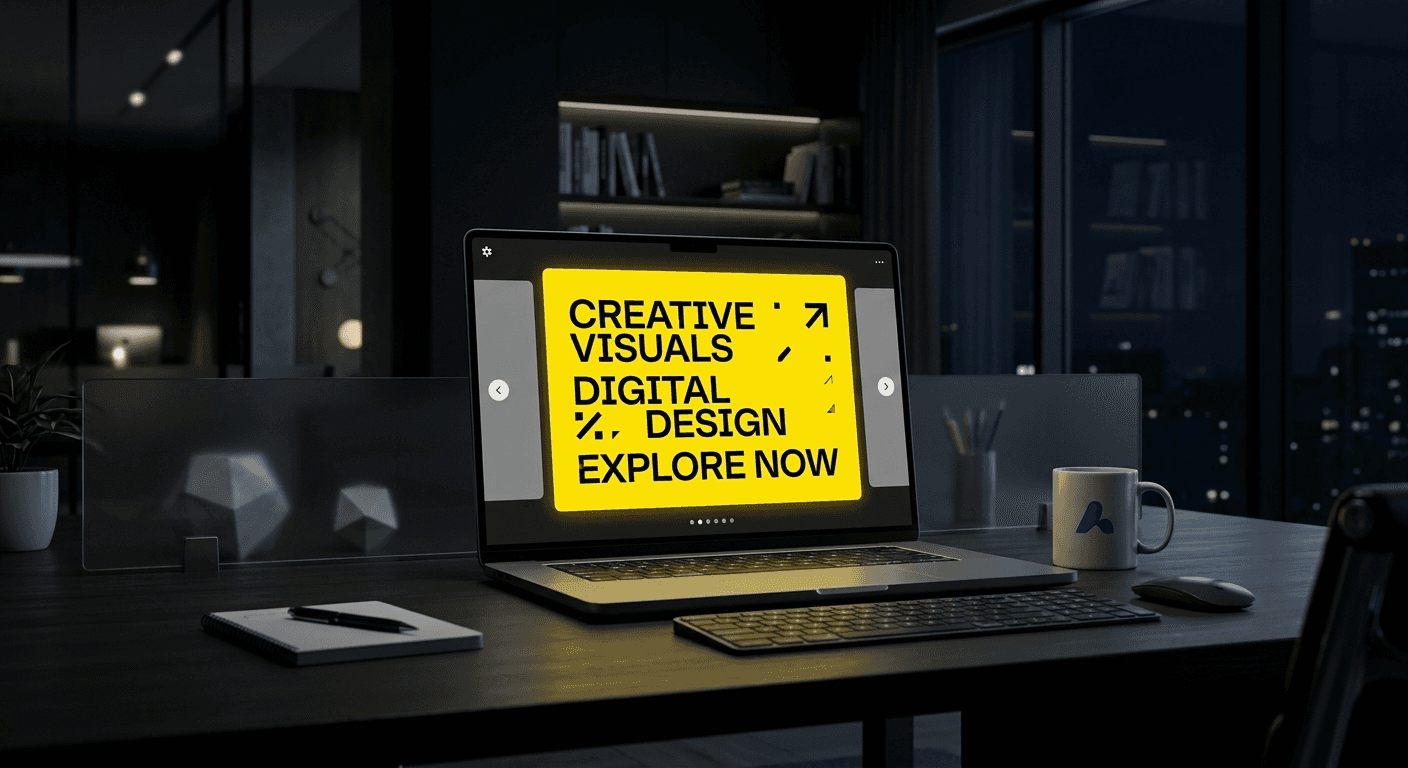
The best colors for linkedin posts are high-contrast hues that clash with the platform's white and gray interface, such as bright yellow, vivid orange, and deep charcoal. These colors disrupt user scrolling patterns by creating a visual anomaly in the feed. Using these strategic shades can increase your engagement rates by making your content impossible to ignore.
What are the best colors for linkedin posts in 2026?
The best colors for linkedin posts are those that create the highest contrast against the LinkedIn user interface. Because the platform uses a white, light gray, and soft blue color palette, content that uses these same colors often becomes invisible to users as they scroll. To stop the scroll, we recommend using a primary background of bright yellow, bold orange, or a high-contrast dark mode using charcoal and neon accents.
Yellow is the most visible color in the spectrum and triggers a natural pause in the human brain. When you use a bold yellow background for a carousel slide, it separates your content from the surrounding white feed. This visual separation is the first step in converting a passive scroller into an active reader. We see the most success when founders use these "disruptor colors" for their headline slides and transition to more traditional brand colors for the supporting content.
Contrast is not just about brightness; it is about difference. If every post in the feed is a safe, corporate blue, a bright green or deep purple post becomes an immediate focal point. The goal is to be the visual outlier. By choosing colors that your competitors avoid, you claim a larger share of the audience's limited attention span. This strategy allows you to look like a premium leader in your space rather than another background player.
Why does high contrast social media design matter on LinkedIn?
High contrast social media design is the practice of selecting colors that occupy the opposite side of the color wheel from the platform's primary palette. LinkedIn uses a predominantly white and light gray background with subtle blue accents in its desktop and mobile interfaces. When you post a graphic that uses these same shades, your content physically blends into the platform UI. For LinkedIn, this means using warm colors like orange and yellow or high-intensity dark modes with bright text. Statistics indicate that posts with high contrast receive significantly more attention because the human eye is biologically programmed to notice anomalies in a consistent field. Research into user behavior shows that high-contrast images can improve content recall by up to 18 percent compared to low-contrast visuals (Color Research and Application, 2023). By prioritizing contrast over pure brand alignment, you ensure your content is seen before it is ignored.
Effective contrast also improves accessibility. When text has a high contrast ratio against its background, it is easier to read on small mobile screens or in bright environments. We recommend a contrast ratio of at least 4.5:1 for all text elements to ensure readability for all users. This technical requirement doubles as a marketing advantage because legible content is consumed faster. If a user can read your headline in half a second, you have a better chance of keeping them on your post.
We build our templates with high-contrast foundations because we know that readability is the floor for engagement. If your audience has to squint or zoom in to see your message, they will simply keep scrolling. High contrast removes that friction. It makes the transition from the feed to your content feel effortless for the user.
How does the psychology of color social media affect B2B buyers?
Psychology of color social media dictates how users perceive the authority and reliability of a B2B brand within seconds of seeing a post. While blue is the most common color for corporate logos because it suggests stability and trust, it often fails to generate engagement on a platform already saturated with that hue. Instead, successful SaaS companies often use a secondary palette of "action colors" to drive clicks. For example, green is associated with growth and success in a financial or metric-based context, making it ideal for case studies and ROI reports. Conversely, purple is often linked to innovation and luxury, which works well for premium software solutions. A study on consumer behavior found that up to 90 percent of snap judgments made about products can be based on color alone (Journal of Business Research, 2023). Selecting the right shade is not a creative choice but a strategic business decision.
Color choice also influences emotional response. Orange evokes energy and friendliness, which can humanize a cold SaaS brand. Red creates a sense of urgency, making it effective for limited-time offers or critical industry updates. However, red should be used sparingly as it can also signal error or danger if overused. We suggest a 60-30-10 rule: 60 percent neutral background, 30 percent secondary brand color, and 10 percent high-psychology accent color.
When you understand these psychological triggers, you can design posts that align with your specific goals. If you want to be seen as a trusted advisor, lean into deep greens and navy. If you want to be seen as a disruptive innovator, use bold yellows and purples. The color does the heavy lifting before the user even reads your first word.
Which saas branding colors drive the most engagement?
Saas branding colors often lean heavily toward "tech blue" or "startup purple," but these choices can limit reach on competitive feeds. To break the pattern, we suggest using a primary brand color as an accent rather than a background. Use a neutral, dark background like charcoal or deep navy and apply your brand color to key data points or CTA buttons. This approach maintains brand recognition while ensuring the post remains readable. Data suggests that carousel posts, which allow for multiple color exposures, have an average engagement rate of 1.92 percent, which is higher than static images or video (Socialinsider, 2024). This increased engagement is often attributed to the visual variety possible within a slide deck. By rotating between high-contrast backgrounds and brand-aligned accents, founders can keep the audience interested through all ten slides without causing visual fatigue or brand boredom.
Engagement is also tied to consistency. While you want to stand out, you also want to be recognizable over time. We recommend creating a "social-first" version of your brand palette. This version should take your core brand colors and increase their saturation or brightness specifically for screen use. Colors that look good on a white PDF often look dull on a backlit mobile screen.
Consider the data in the table below which shows how different background colors typically perform in B2B social feeds based on visibility studies.
Background Color | Visibility Score | Common Association | Best Use Case |
|---|---|---|---|
Bright Yellow | High | Attention/Logic | Headline Slides |
Deep Charcoal | Medium-High | Premium/Modern | Educational Content |
Forest Green | Medium | Growth/Stability | Case Studies |
Vivid Orange | High | Action/Energy | Call to Action |
White/Light Gray | Low | Native/Standard | Minimalist Quotes |
How do you choose b2b brand colors that stand out in the feed?
Choosing b2b brand colors for social media requires a balance between your official company identity and the technical realities of the LinkedIn feed. Start by identifying your primary brand color and finding its direct complement on the color wheel. If your brand is blue, your high-contrast complement is orange. Use this orange specifically for "scroll-stopping" elements like headline text, icons, or progress bars.
We often see startups make the mistake of using their brand colors as the only colors in their posts. This creates a monochromatic look that lacks visual hierarchy. To fix this, introduce a "neutral plus" system. Use a very dark gray (not pure black) for your backgrounds and white for your primary text. Then, use one or two bold colors to highlight the most important parts of your message. This creates a professional, minimalist aesthetic that feels premium and established.
Consistency across posts builds trust. When users see the same specific shade of yellow or green from you every Tuesday, they begin to associate that color with your expertise. This is how you build a personal brand that stays top-of-mind without needing a massive advertising budget. We find that founders who use Figma-based design templates to manage these color tokens maintain a much more cohesive identity than those who design every post from scratch.
What are thumb stopping graphics for LinkedIn?
Thumb stopping graphics are visual assets specifically engineered to interrupt the physical motion of scrolling through a mobile social media feed. These graphics utilize a combination of high-contrast colors, large typography, and minimalist layouts to grab attention in under 250 milliseconds. On LinkedIn, where the professional context often leads to text-heavy posts, a clean graphic with a bold background color acts as a pattern interrupt. Statistical analysis shows that images with a single dominant color perform 17 percent better than multi-colored images in terms of initial click-through rate (HubSpot, 2024). This suggests that visual simplicity is more effective at stopping the scroll than complex imagery. By focusing on one bold color and one clear message per slide, you reduce the cognitive load on the user and make it easier for them to engage with your content.
A thumb-stopping graphic doesn't need to be flashy. In fact, a minimalist approach often looks more professional. Think of it like an Apple advertisement: plenty of negative space, one clear focal point, and perfect typography. This style signals that you are an established player who doesn't need to shout to be heard. It projects confidence and clarity, which are highly valued traits in the B2B world.
Use simple geometric shapes to guide the eye. An arrow pointing to the next slide in a carousel or a bold border around a key statistic can double the time a user spends on your post. These small design choices, combined with the right color palette, create a high-performance visual system.
How do you implement these colors in your marketing workflow?
Implementation starts with a design system. Instead of picking new colors for every post, define a set of 5-7 shades that you use exclusively for LinkedIn. This should include a primary background color, an accent color for highlights, and a neutral color for secondary text. Store these as color styles in Figma so you can apply them to your templates with a single click.
We recommend testing different color combinations over a 30-day period. For example, use yellow headlines for one week and orange headlines for the next. Monitor your impressions and engagement metrics to see which shade resonates most with your specific audience. Marketing is an experiment, and color is one of your most important variables.
Create a library of 3-5 background styles to prevent visual monotony.
Use high-contrast text for all captions and call-outs.
Ensure your profile picture uses the same accent color to build brand cohesion.
Avoid pure white backgrounds as they blend into the LinkedIn desktop UI.
What are the most common mistakes in LinkedIn color selection?
The biggest mistake we see is the use of "LinkedIn Blue" in posts. While it feels safe and professional, it is the worst color for stopping the scroll because it is the native color of the platform. Using it is like wearing camouflage; you are actively trying to blend in. Another common error is using too many colors in a single slide. This creates visual noise and makes the content feel "cheap" or cluttered, which damages brand credibility.
Avoid low-contrast text, such as light gray on a white background. While this might look modern in a high-end design gallery, it is a failure in the context of a social media feed. If the user can't read your content while walking or in low light, you have lost the lead. Finally, don't ignore the "Dark Mode" users. LinkedIn's dark mode changes how colors appear, so always preview your designs against both light and dark backgrounds to ensure they remain legible.
A final tip: Use a tool like Figma to check your contrast ratios before you export. Aim for a score that passes the WCAG AA standard at minimum. This small step ensures your content is accessible to everyone, which naturally expands your potential reach.
References
Color Contrast and Content Recall Study. Color Research and Application, 2023.
The Impact of Color on Marketing Snap Judgments. University of Winnipeg, 2022.
LinkedIn Engagement Benchmarks for 2024. Socialinsider, 2024.
State of Marketing Report 2024. HubSpot, 2024.
Color and Psychological Functioning. Journal of Business Research, 2023.



