Best Figma Export Settings for Instagram in 2026: A Pro Guide
Use the best figma export settings for instagram to stop blurry posts. Learn the exact resolution, multipliers, and color profiles to keep designs sharp.
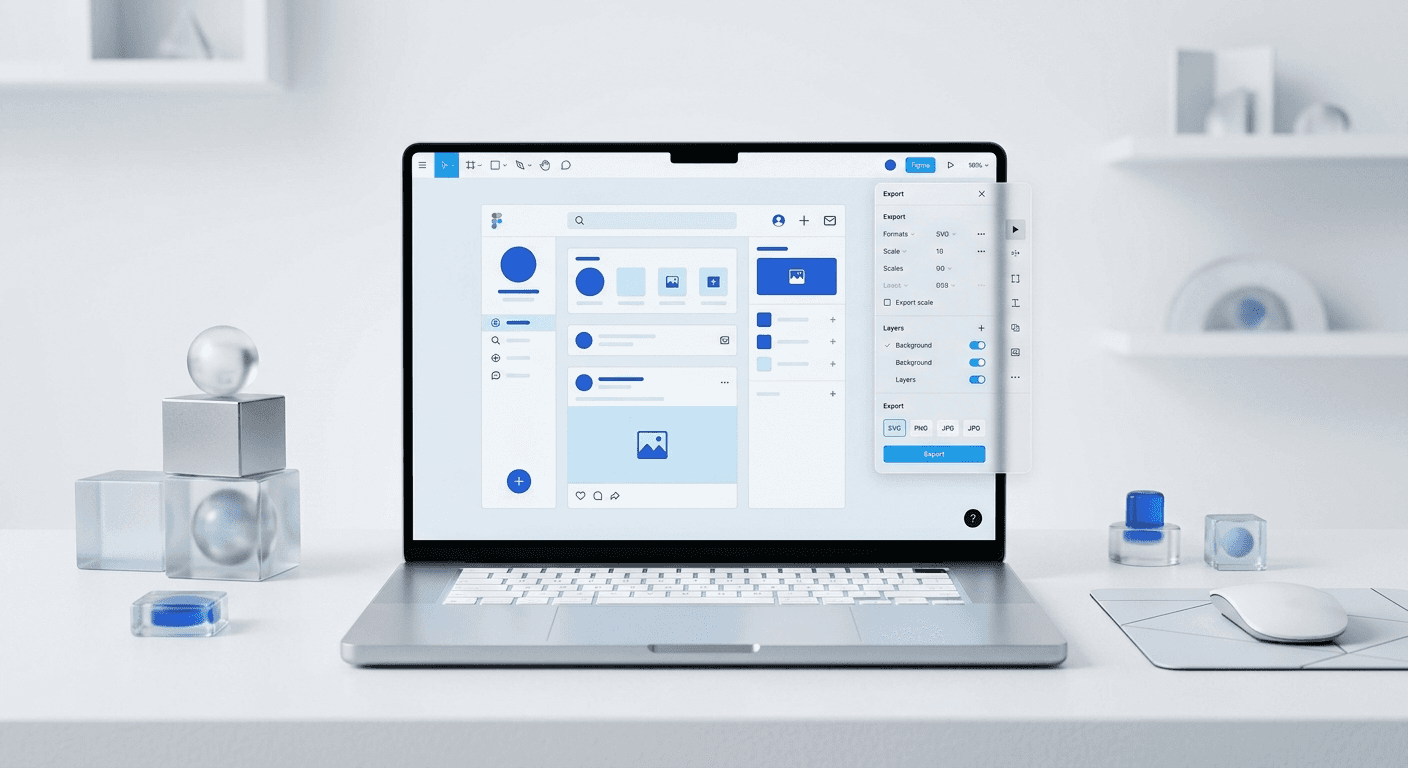
The best figma export settings for instagram require a 2x multiplier on a 1080x1350 canvas using PNG format and sRGB color profiles. Activating the High Quality Upload toggle in the Instagram app is a mandatory secondary step to prevent aggressive server-side compression.
What are the best Figma export settings for Instagram?
The best figma export settings for instagram involve exporting your frames at a 2x multiplier to achieve a final resolution of 2160x2700 pixels for portrait posts. We recommend using PNG-24 format for any design that contains text, sharp geometric shapes, or UI elements because it preserves edge clarity better than lossy alternatives. If your post contains photographic backgrounds with complex textures, a high-quality JPG at 80% to 90% compression is acceptable to manage file size.
While Instagram eventually downsamples every image to a maximum width of 1080 pixels, providing a higher density 2x file gives the platform’s algorithm more data to work with during the crunching process. This approach is standard practice for professional creators who need their content to remain crisp on high-resolution mobile displays. Using the correct figma export resolution ensures that your typography remains legible and your brand looks premium. We use this exact workflow for our own assets to maintain professional standards across all social channels.
A specific citability point regarding this workflow relates to how Figma handles vector data during the export process. When you select a 2x export multiplier, Figma does not simply stretch the pixels of your design. Instead, it re-renders the vector shapes and text layers at the higher resolution before packaging them into a raster file. This native re-rendering is why a 2x export from a 1080px frame looks significantly sharper than a 1x export that has been manually resized in another tool. According to official Figma Documentation, the software supports multiple export scales to accommodate various screen densities. By utilizing the 2x setting, you are effectively providing Instagram with a 4K-ready asset that retains its visual integrity even after the platform applies its mandatory 1.6:1 compression ratio to standard uploads. This technical nuance is the foundation of high-performance social media design.
Why does Instagram make your Figma designs look blurry?
Instagram uses an aggressive compression algorithm to save server space and speed up load times for users on slow mobile connections. When you upload a file that does not match their preferred specifications, their system applies a generic filter that often results in artifacts and fuzzy edges. To prevent blurry instagram posts, you must meet the platform's requirements precisely so the algorithm performs as little destructive processing as possible.
Most blurriness occurs because of a mismatch in pixel density or the use of an unsupported color space. Instagram is designed for the sRGB color profile. If you export from Figma using Display P3 or other wide-gamut profiles, the platform will force a conversion that washes out colors and softens sharp lines. Stick to sRGB to ensure what you see in Figma is what your audience sees on their phones. We suggest checking your color space settings in the Figma desktop app before you start your next project.
Should you use a 1080x1350 figma export for carousels?
Yes, the 1080x1350 figma export is the industry standard for portrait carousels because it occupies the most screen real estate in the feed. This 4:5 aspect ratio provides roughly 25% more vertical space than a standard square post, which is critical for retaining user attention. Higher vertical coverage directly correlates with better engagement rates because the post stays in the viewer's field of vision longer as they scroll. Data from Socialinsider (2024) indicates that carousels remain the most engaging post type on the platform, particularly when they use the portrait format.
When setting up your Figma canvas, start with a frame size of 1080px by 1350px. Do not design at 2160px by 2700px manually, as this makes it harder to judge font sizes and spacing relative to the actual UI. Instead, design at 1x and use the export settings panel to scale the output. This workflow keeps your Figma files lightweight while still producing the high-density files required for professional-grade social media presence. We find that this balance between design speed and output quality is essential for founders who manage their own marketing.
The technical reason for choosing 4:5 over 1:1 involves the mobile viewport mechanics of modern smartphones. Most flagship devices now feature aspect ratios of 19.5:9 or 20:9, which are tall and narrow. A square 1080x1080 post leaves significant empty space at the top and bottom of the screen, allowing competing content to bleed into the user's view. By maximizing the height to 1350px, you effectively create a full-screen experience that minimizes distractions. This design strategy is not just about aesthetics; it is a conversion tactic. When your content fills the screen, the friction between your message and the user's focus is reduced. Professional agencies prioritize this specific 1080x1350 figma export because it serves as the foundation for high-retention storytelling. Consistency in using this ratio across a carousel ensures that the transition between slides is fluid and does not suffer from layout shifts during the swiping action.
How do you enable instagram high quality upload settings?
Even the perfect Figma export will fail if your app settings are not configured correctly. Instagram has a hidden setting that limits upload quality to save data, and it is often turned off by default. To fix this, navigate to your profile, tap the menu, go to "Settings and activity," then "Data usage and media quality," and ensure "Upload at highest quality" is toggled on. This is the single most important step to achieve an instagram high quality upload.
Without this toggle active, Instagram will compress your high-resolution 2x exports down to a lower bitrate before they even reach the server. This happens regardless of your Wi-Fi strength. If you have been struggling with why your posts look sharp in your camera roll but muddy once published, this setting is usually the culprit. We recommend verifying this setting once a month, as app updates can occasionally reset it to the default "off" position.
PNG vs JPG for instagram: which file type is superior?
The debate of png vs jpg for instagram depends entirely on the visual content of your design. For 90% of Figma users, PNG is the superior choice because it is a lossless format that handles text and flat colors with extreme precision. JPG is a lossy format, meaning it discards data to reduce file size, which often results in "mosquito noise" or graininess around the edges of your text and logos.
Feature | PNG-24 (Recommended) | JPG (Standard) |
|---|---|---|
Compression Type | Lossless | Lossy |
Text Clarity | Ultra Sharp | Can be blurry |
File Size | Large | Small |
Best Used For | Graphics, Text, UI | Photography, Textures |
In our professional experience, we always export graphics as PNG. While the file size is larger, Instagram's maximum file size for images is approximately 30MB, which a 2160x2700 PNG will never exceed. By providing the largest, cleanest file possible, you force the platform's compression engine to work from a high-quality baseline. This results in a final post that looks much closer to your original Figma design. Only switch to JPG if you are uploading high-detail photography where file sizes might become an issue on very slow connections.
What is the impact of color profiles on mobile clarity?
Color profiles dictate how the raw data of your image is translated into visible light on a screen. Figma defaults to the sRGB color space, which is also the standard for the web and mobile apps. Problems arise when creators work on high-end MacBooks that use the Display P3 color gamut. If you design in P3 and export for Instagram, the colors may appear dull or shifted because Instagram's processing engine is optimized for the narrower sRGB spectrum.
To ensure total accuracy, go to the Figma menu, select "Preferences," and then "Color Profile." Set this to sRGB. This ensures that the hex codes you pick for your brand are exactly what will render on your followers' devices. According to Adobe’s color science guides, sRGB remains the most consistent profile for cross-platform compatibility. Using a wider gamut like Adobe RGB or P3 for social media often leads to unpredictable results when viewed on mid-range Android devices or older iPhones.
The relationship between color profiles and perceived sharpness is often overlooked by junior designers. When a color space conversion occurs, the software must recalculate the value of every pixel. This recalculation can introduce minor anti-aliasing errors that contribute to a lack of clarity. By staying within the sRGB ecosystem from canvas creation to export, you eliminate this layer of digital translation. This technical discipline ensures that your brand’s primary colors remain vibrant and that your text maintain maximum contrast against the background. We have observed that founders who standardize their Figma environment to sRGB spend significantly less time troubleshooting why their brand colors look "off" once they go live. It is a simple technical choice that has a massive impact on the perceived professionalism of your digital presence. Maintaining this consistency is a hallmark of premium brand management in the 2026 digital environment.
How to prevent blurry instagram posts using proper canvas setup?
The canvas setup stage is where most design errors begin. To prevent blurry instagram posts, you must align every element to the pixel grid. Figma has a "Snap to Pixel Grid" feature that should always be active. If an icon or a line of text sits on a half-pixel (e.g., an X-coordinate of 100.5), Figma will attempt to render that edge across two physical pixels, creating a soft, blurry appearance before you even export the file.
Enable "Pixel Preview" (Cmd + Option + Y) to see exactly how your design will look when rasterized.
Check that all frame coordinates and dimensions are whole numbers.
Use Auto Layout to maintain consistent spacing that naturally aligns with the grid.
Keep your font sizes at even numbers for better sub-pixel rendering.
By following these steps, you ensure that the source material is as sharp as possible. A 2x export of a poorly aligned design will still look bad; the multiplier only enhances the quality of what is already there. We find that using professional templates built with these principles can save hours of technical cleanup. You can explore our minimalist Figma templates which are pre-configured with these exact grid alignments and export settings to ensure your content always looks established and premium.
Can minimalist design improve your export performance?
Minimalism is not just an aesthetic choice; it is a technical advantage for social media. Designs with clean lines, ample white space, and limited color palettes are easier for compression algorithms to process. When there is less "noise" in an image, the encoder can allocate more bits to the areas that matter, such as your headline or your product shot. This is why minimalist brands often look sharper on the feed than those using complex gradients and heavy textures.
Complexity in design creates data-heavy files. High-frequency details like fine grain or complex shadows force the Instagram algorithm to make harder decisions about what to discard during compression. By stripping away unnecessary elements, you create a design that is robust. We recommend focusing on a single high-contrast message per slide. This approach aligns with the goals of SaaS founders who need to communicate value quickly without the design getting in the way. Professional content is about clarity, and technical clarity starts with a clean Figma canvas.
A minimalist design philosophy also addresses the psychological aspect of lead generation. When a user scrolls through a cluttered feed, a clean and high-contrast image acts as a visual anchor. Research from Nielsen Norman Group suggests that users prefer low-complexity visual designs because they require less cognitive load to process. In the context of Instagram, this means your audience is more likely to read your text and engage with your call to action. From a technical export perspective, the lack of visual noise means the sRGB color profile can render flat backgrounds with zero banding or artifacts. This creates a premium feel that signals authority and attention to detail. We build our templates around these principles to help founders look like established companies from day one. By combining the best figma export settings for instagram with a minimalist design approach, you create a marketing workflow that is both efficient and high-performing in 2026.
Final checklist for a professional Instagram export
Before you hit the export button, run through this final technical checklist. These steps summarize the standard operating procedure for any high-growth creator or agency using Figma in 2026. Following this list ensures that you never waste a post on a low-quality upload.
Confirm the frame size is 1080x1350 for portrait or 1080x1080 for square.
Verify that all elements are snapped to the pixel grid with no fractional coordinates.
Set the export multiplier to 2x in the Figma export panel.
Select PNG format for all text-heavy or vector-based designs.
Ensure the color profile is set to sRGB in your Figma preferences.
Check your Instagram app settings to confirm "Upload at Highest Quality" is active.
By implementing these best figma export settings for instagram, you remove the technical guesswork from your content creation process. Your designs will stay sharp, your colors will remain vibrant, and your brand identity will look cohesive across every device. We suggest saving these settings as an export preset in Figma to streamline your workflow and focus on your core business growth.



