How to Use Figma Components for Marketing to Scale Production
Learn how to use Figma components for marketing to create social posts 10x faster. Master reusable assets and variants to scale your brand identity efficiently.
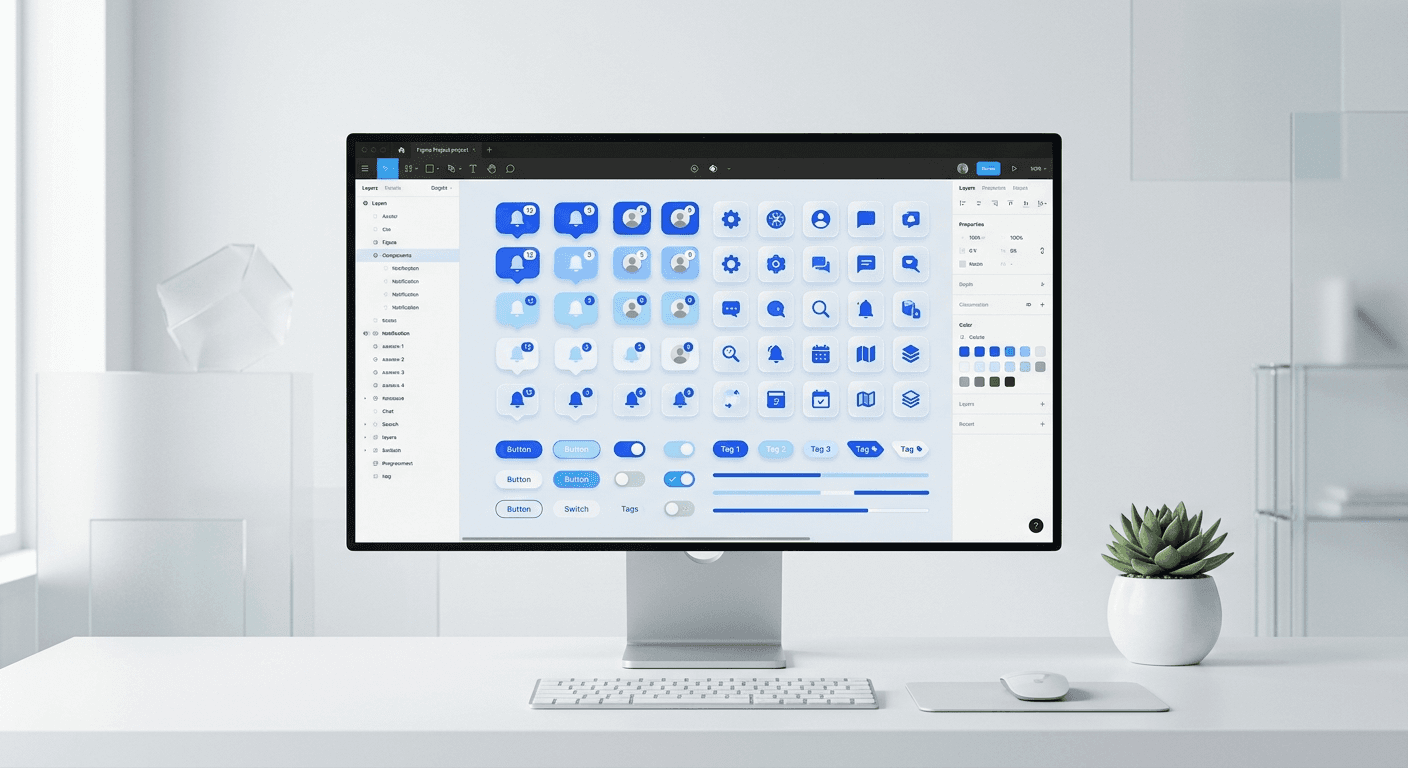
Figma components for marketing are reusable design elements that allow you to update dozens of social media posts, ads, or headers from a single master source. By building a modular library of headers, tags, and mockups, you eliminate repetitive design work and maintain a premium brand identity across every channel.
Learning how to use Figma components for marketing is the most effective way to solve the bottleneck of content production. Most marketing teams waste hours manually adjusting font sizes, moving logos, or re-aligning buttons across ten different carousel slides. This manual approach is slow and prone to human error, which damages brand credibility. We view Figma as more than a UI tool; it is a manufacturing system for your brand assets.
A component is a master element that defines the properties of all its instances. When you change the color or font of a master component, every copy of that element across your entire Figma file updates instantly. This architecture allows a small team to produce the volume of a full-scale agency. We build our Figma carousel templates using these exact modular principles to ensure founders can ship professional content without a dedicated design department.
How do you start a component library setup for marketing?
A component library setup for marketing is the process of creating a dedicated Figma file that houses your brand’s core visual building blocks. This library should include buttons, typography styles, color palettes, device mockups, and social media handles. Think of this library as a Lego set where every piece is designed to fit perfectly with the next, regardless of the specific layout.
Start by creating a new Figma file and naming it Brand Assets or Marketing Library. Create separate frames for different categories such as UI Elements, Social IDs, and Backgrounds. Use the Create Component shortcut (Option + Command + K on Mac) on each individual element. This turns the element into a master component, indicated by a four-diamond icon in the layers panel. Organize these by using a slash naming convention like Icons/LinkedIn or Buttons/Primary to keep the assets panel clean and searchable.
A structured library is the foundation of design speed. When you have a centralized source for your most used assets, you no longer spend time searching for the correct hex code or the high-resolution version of your logo. This system ensures that even if five different people are creating content, the output looks like it came from a single designer. Consistency is a signal of quality to your potential customers. A messy brand suggests a messy product.
Why should you follow a figma master components tutorial?
A figma master components tutorial teaches you how to maintain total control over your visual identity while increasing output speed. The master component is the parent, and every copy you drag into a design is an instance. Changes flow from parent to child, but you can still override specific properties on an instance, such as text content or specific images, without breaking the link to the master style.
The primary benefit of this hierarchy is the ability to perform global updates. If your brand undergoes a font change, you do not have to open fifty separate files to update your social media posts. You simply update the master typography component in your library, and the change propagates through every instance. This functionality is why Figma has become the industry standard, as it treats design as a scalable system rather than a series of static images.
Master components also prevent brand drift. Brand drift happens when small, unintentional changes to spacing, colors, or fonts accumulate over time, eventually making your marketing materials look disconnected. By using master components, you lock in the correct parameters. This technical constraint forces every piece of content to remain within the established brand guidelines, which is essential for building a recognizable presence on crowded platforms like LinkedIn or Instagram.
How do figma variants for social media speed up design?
The feature known as figma variants for social media allows you to group similar components into a single container with different properties. A variant is a version of a component that might change based on state, size, or platform. For example, you can have one component for a Call to Action button that contains variants for desktop, mobile, and different brand colors, all accessible from a single dropdown menu in the sidebar.
To create variants, select two or more master components and click the Combine as Variants button in the right-hand sidebar. This is particularly useful for social media assets where you often need the same element in different aspect ratios. You can create a slide header component with variants for 1:1 Instagram posts and 9:16 vertical stories. Instead of redesigning the header, you simply toggle the platform property in the instance settings to switch between the two layouts.
Variants reduce the cognitive load of choosing the right asset. Instead of scrolling through hundreds of individual components in the assets panel, you find the core element and then use the configuration toggles to get the specific version you need. This workflow is especially powerful when combined with Auto Layout, as the component can automatically resize to fit different text lengths or container widths. This ensures your designs always look balanced, regardless of the content density.
Workflow Feature | Manual Design Process | Component-Based Process |
|---|---|---|
Updating Brand Colors | Manual edit on every single slide | One update to the master component |
Swapping Icons | Deleting and re-aligning new assets | Instance swapping via the sidebar |
Scaling Content | Copy-pasting and fixing layouts | Toggling variants for different platforms |
Brand Consistency | High risk of human error | System-enforced brand standards |
How do you scale design production with reusable assets?
You can scale design production by building a library of reusable marketing assets that cover the most frequent content types your startup produces. Reusable assets are more than just buttons; they include complex patterns like customer testimonial blocks, feature comparison tables, and device mockups. When these are turned into components, assembling a new marketing deck or carousel becomes a task of assembly rather than creation.
According to data from Socialinsider (2024), LinkedIn carousels reach 3.2 times more people than static images. To capture this reach, marketing teams must produce high volumes of high-quality assets without burning out. This is where a component-based workflow becomes the standard for modern startups. Instead of designing ten unique slides, you design one master layout and swap the content using component properties. This system reduces the time spent on repetitive tasks by up to 75% compared to manual layout adjustments. By treating your design assets as a modular system rather than static files, you enable junior team members or non-designers to create brand-compliant content independently. This democratization of design is the primary driver behind rapid audience growth for companies that prioritize consistent visual output across all digital channels, from LinkedIn posts to YouTube thumbnails.
To implement this, we recommend identifying the patterns you use most often. Look at your last ten social media posts. Do they all use the same headshot circle? Do they all have a similar footer with your website URL? Turn those repeating sections into components. Once your library has 15 to 20 of these patterns, you can build a full 10-slide carousel in minutes. This efficiency allows you to focus on the quality of your message rather than the position of a text box.
What are the best practices for naming components in Figma?
Proper naming conventions are what separate a professional design system from a cluttered file. Figma uses the forward-slash character to create folders in the assets panel. If you name a component Header/Desktop/Dark, Figma will group it under a Header folder, then a Desktop sub-folder. This organization is vital when your library grows to include dozens of variants and different marketing assets.
Use clear, descriptive names that focus on the function of the element. Avoid vague names like Box 1 or Image Holder. Instead, use names like Testimonial/Card or Footer/Social_Links. This allows any team member to use the search bar in the assets panel to find exactly what they need in seconds. We also suggest using Title Case or kebab-case consistently throughout the library to maintain a professional look in the layers panel.
Another expert tip is to include keywords in the component description field. In the right-hand sidebar of the master component, you can add a description. If you add keywords like call to action or buy now to a button component, those terms will trigger that component in the search results even if the component name is different. This level of organization ensures that your design system remains usable as your team scales and more people contribute to the marketing workflow.
How do you use Figma components for marketing workflows?
To use Figma components for marketing workflows effectively, you must integrate them into your content calendar and creation habits. The workflow should follow a simple three-step process: identify the content, pull components from the library, and populate the data. This shift from designing to assembling is what enables high-frequency posting schedules without a loss in quality.
Start by setting up a template file for each major social platform. Inside these files, enable your Brand Assets library via the Team Library toggle. Drag the master layouts you need from the assets panel into your workspace. Since these are instances, you can change the text and swap images to fit your current campaign. If you find yourself making the same custom adjustment more than three times, it is a sign that you should add a new variant to your master library.
We suggest creating a staging area in your Figma file for work-in-progress content and a separate area for approved assets. This separation prevents unpolished designs from being exported. Since components are linked, you can review the design once, and any minor tweaks you make to the master will fix the asset in the staging area automatically. This workflow mirrors the software development lifecycle, bringing a level of engineering precision to marketing design.
What common mistakes should you avoid with Figma components?
The most common mistake when starting to use Figma components for marketing is over-complicating the system. You do not need a multi-layered design system with thousands of tokens on day one. Beginners often create too many nested components, which makes simple text edits difficult. Start with the basics and only add complexity when you feel a recurring pain point in your workflow.
Another error is failing to use Auto Layout within your components. Components and Auto Layout are designed to work together. If you build a component without Auto Layout, changing the text will likely break the alignment of other elements, forcing you to manualy fix the design. This defeats the purpose of using components. Always ensure your containers are set to hug contents or fill container so the design adapts to the information you put inside it.
A design system is a living document, not a static monument. If a component is no longer serving your marketing goals, delete it or refactor it. The goal is speed and clarity, not an endless list of unused assets.
Finally, avoid detached instances. In Figma, you have the option to detach an instance from its master, which breaks the link entirely. This is tempting when you want to make a quick, unique change, but it creates technical debt. Once an instance is detached, it will no longer receive global updates. Instead of detaching, look for ways to use properties or variants to achieve the look you need while keeping the component connection intact.
How to master your marketing design system
Mastering how to use Figma components for marketing is a competitive advantage for any startup or agency. By treating your visual assets as a scalable library, you reduce the cost of content production and ensure every post reinforces your brand’s premium identity. High-quality visual content is no longer a luxury reserved for companies with massive design budgets; it is a result of smart workflow choices.
As you build your library, prioritize components that offer the highest return on time. Focus on your social media templates, ad banners, and email headers first. These are the touchpoints where your audience interacts with your brand most frequently. Over time, your component library will become your most valuable marketing asset, allowing you to launch new campaigns in a fraction of the time it previously took.
We encourage you to experiment with different component properties to find the balance that works for your team. The goal is to move from a state of constant design friction to a state of creative flow. When the technical details of alignment and branding are handled by the system, you are free to focus on what matters most: telling your story and growing your audience. Start small, build systematically, and let your components do the heavy lifting.



