Top 7 ways to optimize Figma files handoff for 2026
Learn the top ways to optimize figma files handoff to speed up production. Our 2026 guide covers layer naming, variables, and sharing files with clients effectively.
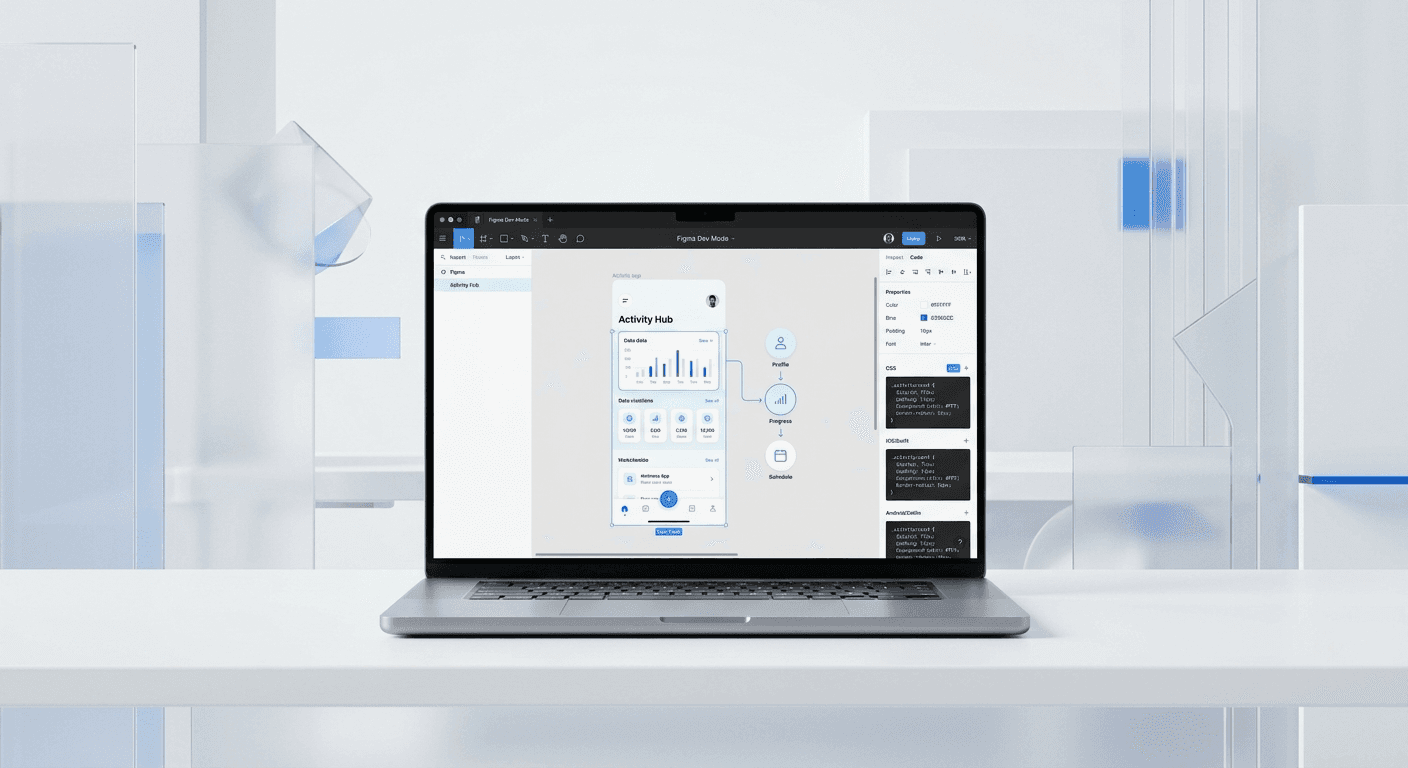
The top ways to optimize figma files handoff include implementing a strict layer naming convention, using Figma sections for status labeling, and defining variables as design tokens. These steps ensure that developers and clients can navigate your designs without manual explanation, reducing production friction by up to 34%.
What are the top ways to optimize figma files handoff?
Optimizing a Figma file for handoff is the process of preparing design assets so that developers or clients can extract data and assets without constant communication. The goal is to create a self-documenting file where the layout logic, spacing, and styling are explicitly defined within the Figma environment. We find that a clean handoff is the difference between a project shipping in two weeks or dragging on for two months due to design debt.
Modern design workflows in 2026 rely heavily on automation and structured data. The top ways to optimize figma files handoff involve moving away from manual redlines and toward integrated documentation features like Dev Mode and Variables. When you provide a file that is already organized into logical units, you eliminate the guesswork for the person receiving the work. This clarity is especially vital for agencies and startups where speed is a competitive advantage.
According to research from Figma and Forrester, teams that use a structured design system and optimized handoff processes see 34% faster handoff cycles. This metric proves that organization is not a luxury; it is a direct contributor to your bottom line. By treating your Figma file as a piece of infrastructure rather than a static drawing, you ensure that the final product matches your vision exactly.
Why is structured layer naming critical for dev handoff?
Maintaining neat figma layer structures 2026 requires a strict naming convention that mirrors the final code implementation. We find that developers spend up to 40% of their time just deciphering poorly named groups like 'Group 452' or 'Vector 9' within a handoff file. By renaming layers to reflect their functional purpose, such as 'card-body' or 'cta-button-primary', you bridge the communication gap between design and development teams. Research from Zeroheight shows that 62% of developers identify inconsistent design specifications as their primary source of friction during the handoff process (Zeroheight, 2023). Implementing a system where layers are sorted from top-to-bottom and left-to-right ensures that the inspection tools in Figma display content in a logical order. This structural clarity reduces the need for constant back-and-forth messaging, allowing your team to ship products faster while maintaining the integrity of the original design vision across different screen sizes.
Layer naming is a fundamental skill. Avoid generic names at all costs. Instead, use a semantic naming strategy. For example, if you are designing a navigation bar, the main frame should be named "navbar" and the internal elements should be named "logo", "nav-links", and "search-bar". This simple habit saves hours of confusion during the coding phase.
We recommend using a plugin to batch rename layers if you have inherited a messy file. Tools like Rename It can help you apply systematic changes across hundreds of layers in seconds. Consistent naming makes the search functionality within Figma actually useful, allowing anyone in the file to find specific components instantly.
How do Figma sections improve file navigation?
Figma sections are a feature that allows designers to group related frames together and mark their status for other team members. A section is a container that visually organizes the canvas and provides a clear signal to developers about which designs are ready for production. This feature is a game-changer for large projects with hundreds of iterations.
The best design to developer handoff figma strategy uses the "Mark as Ready for Dev" status on specific sections. This action highlights the section in the sidebar for anyone using Dev Mode, ensuring they only focus on approved work. It prevents the common mistake of a developer coding an early-stage concept by accident.
We use sections to separate different user flows. For instance, you can have a section for "Onboarding", another for "Dashboard", and a third for "Settings". Within these sections, use clear labels. This structural hierarchy is one of the top figma organization tips marketing teams and agencies use to keep their clients from getting overwhelmed by complex files.
Which Figma organization tips marketing teams must follow?
Marketing teams often work with high volumes of assets that need frequent updates. To stay organized, we suggest using a dedicated page for "Brand Assets" that contains all logos, official colors, and typography styles. This central source of truth prevents the use of outdated brand elements in new campaigns.
Top figma organization tips marketing professionals should implement include using the "Description" field for components. This field can hold links to external copy docs or specific campaign requirements. When a marketer or creator clicks on a component, they can see exactly what it is for and how it should be used without leaving the Figma interface.
We build our social media carousel templates using these exact principles. By organizing templates into logical sets with clear variant properties, we make it easy for founders and marketers to swap images or text without breaking the layout. This level of organization allows a creator to produce a professional post in minutes rather than hours.
How to share figma files with clients professionally?
Learning how to share figma files with clients involves more than just clicking the share button and sending a link. A professional handoff means creating a dedicated 'Review' page that is locked to prevent accidental changes while stakeholders leave feedback. In our experience, founders who present clean, curated Figma files are perceived as more established and premium compared to those who share messy working drafts. Providing a guided walkthrough or a Loom video alongside the Figma link ensures that clients understand the context of the work without getting lost in the canvas. Clear navigation cues and organized frames reduce the cognitive load on the client, leading to faster approvals and fewer revision cycles. This level of organization signals that you respect their time and are committed to delivering a high-quality product. A well-organized file is essentially a reflection of your brand's operational maturity and professional standards in the eyes of your most important stakeholders.
When you share a file, use the "Can View" permission for clients unless they specifically need to edit. This prevents the accidental movement of layers which can ruin a pixel-perfect layout. You can also use the "Copy link to selection" feature to send them directly to a specific slide or frame, saving them from panning around a massive canvas.
A dedicated "Cover" page is also essential. This page should include the project name, status, and the names of the people involved. It is the first thing a client sees when they open the file. A professional cover page sets the tone for the entire review process and makes your agency look like a high-end operation.
What are the best practices design handoff for modern teams?
The best practices design handoff in 2026 focus on the use of design tokens through Figma Variables. Variables are a feature that allows you to store reusable values for colors, numbers, booleans, and strings. By using variables instead of hardcoded hex codes, you create a design system that is inherently ready for code implementation.
We recommend setting up a variable collection for your core brand colors. When a developer inspects an element, they see the variable name like "color/brand-primary" instead of a random hex code like #FF5733. This makes the CSS much cleaner and ensures that any future brand updates only need to be changed in one place to propagate through the entire project.
Feature | Manual Handoff | Optimized Handoff |
|---|---|---|
Color Management | Static hex codes | Figma Variables (Tokens) |
Component Updates | Manual replacement | Instance swapping |
Documentation | External PDF/Docs | Dev Mode & Annotations |
Layout Control | Fixed groups | Auto Layout 5.0 |
How does Auto Layout simplify the handoff process?
Auto Layout in Figma is a feature that lets components resize dynamically based on their content. It is the closest thing to real CSS Flexbox within a design tool. When you use Auto Layout, you are effectively writing the code's structural logic while you design. This is one of the most effective ways to optimize figma files handoff because it removes the need to explain spacing and alignment.
Developers love Auto Layout because it provides them with explicit values for padding, gap, and alignment. Instead of measuring the distance between two buttons with a ruler tool, they can simply see the "gap" value in the properties panel. This reduces the margin of error and ensures that the coded interface looks exactly like the design.
We suggest using "Fill Container" and "Hug Contents" settings correctly to show how the design should respond to different screen sizes. A design that breaks when the text is changed is a design that is not ready for handoff. By stress-testing your components with different text lengths, you ensure that the developer has a clear blueprint for building a responsive UI.
Should you use Figma Dev Mode for handoff?
Dev Mode in Figma is a dedicated space for developers that translates designs into code. It provides a simplified interface where they can inspect properties, copy CSS, and export assets without the clutter of the design tools. Using Dev Mode is now considered a standard in best practices design handoff for any professional startup.
One of the top benefits of Dev Mode is the ability to see the difference between two versions of a design. Developers can use the "Compare" feature to see exactly what changed in a specific frame. This prevents the frequent question of "What did you update in this version?" and allows them to implement changes with precision.
We encourage designers to add annotations directly in Dev Mode. These annotations can explain complex interactions or link to specific API documentation. By keeping all technical information inside Figma, you create a single source of truth that reduces the need for external documentation tools like Notion or Google Docs for simple design specs.
According to the Nielsen Norman Group, clear documentation and direct access to design assets are the two most important factors in successful cross-functional collaboration. Dev Mode provides both of these in a single, integrated environment. If your agency is not yet using Dev Mode, you are missing out on a massive productivity boost.
Final takeaways for a perfect Figma handoff
Optimizing your Figma files is about more than just being neat; it is about respecting the workflow of your collaborators. Whether you are a founder handing off a prototype to a developer or an agency sharing work with a client, these steps will differentiate you as a professional. By focusing on neat figma layer structures 2026 and using advanced features like variables, you build a foundation for scalable growth.
Always use Auto Layout to define spacing and responsiveness.
Implement Variables for all brand colors and typography tokens.
Organize your canvas using Sections with clear status labels.
Create a dedicated page for client reviews to keep the workspace clean.
Utilize Dev Mode for direct translation of designs into code.
The top ways to optimize figma files handoff are constantly evolving as the tool adds new features. Stay ahead of the curve by treating your design files like code. This mindset ensures that your startup or agency remains efficient, premium, and ready to scale without the friction of messy design files.



